.png)
Kartra Integration for Nudgify
How to Install Nudgify on Kartra Pages?
Installing Nudgify with Kartra is really easy and only takes a couple of minutes.
With Nudgify, you can add Social Proof, FOMO Nudges and more to your Kartra website to boost your conversion rate.
Step 1: Copy your Nudgify Pixel code
Just sign up for Nudgify and select Kartra as your integration.
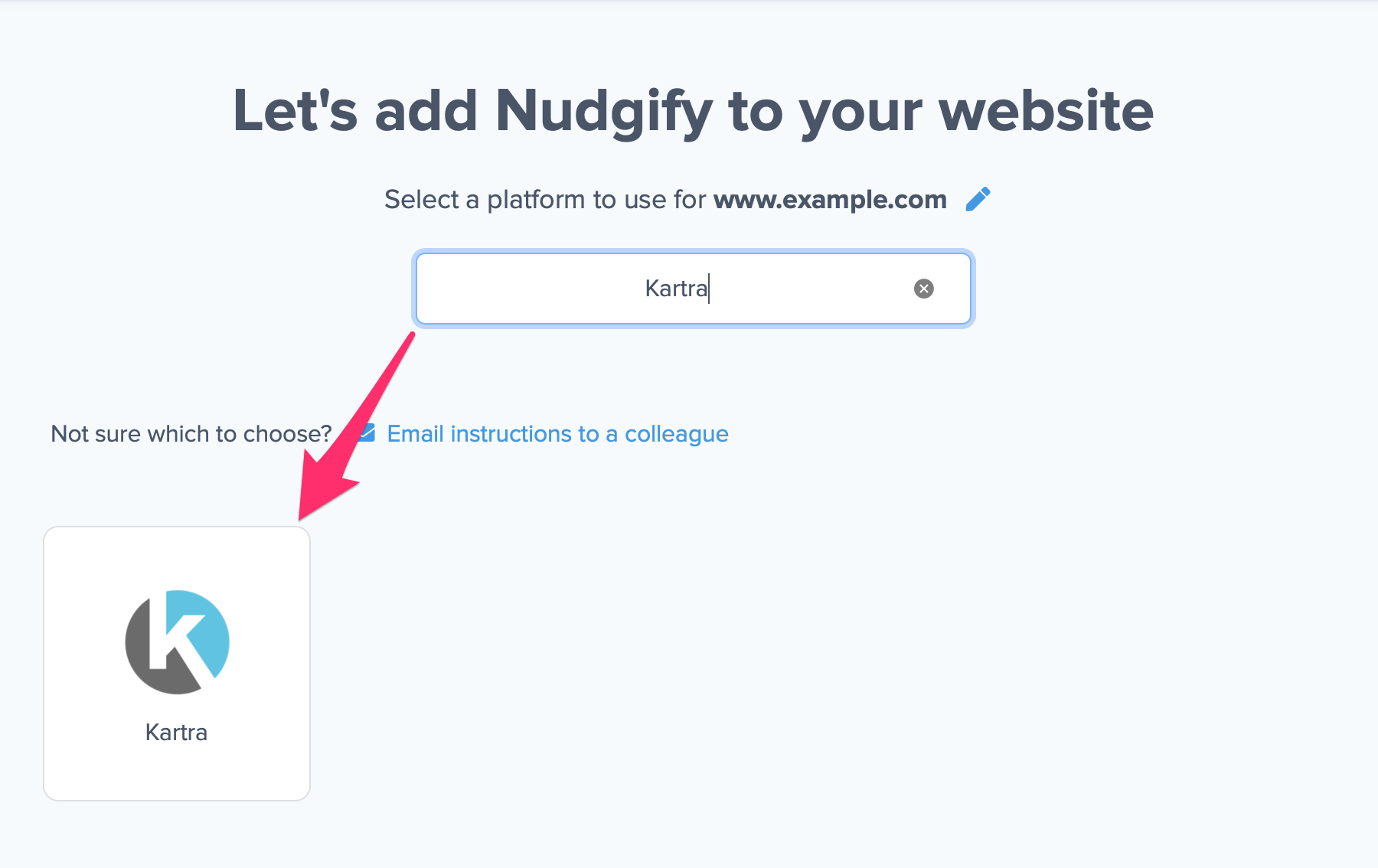
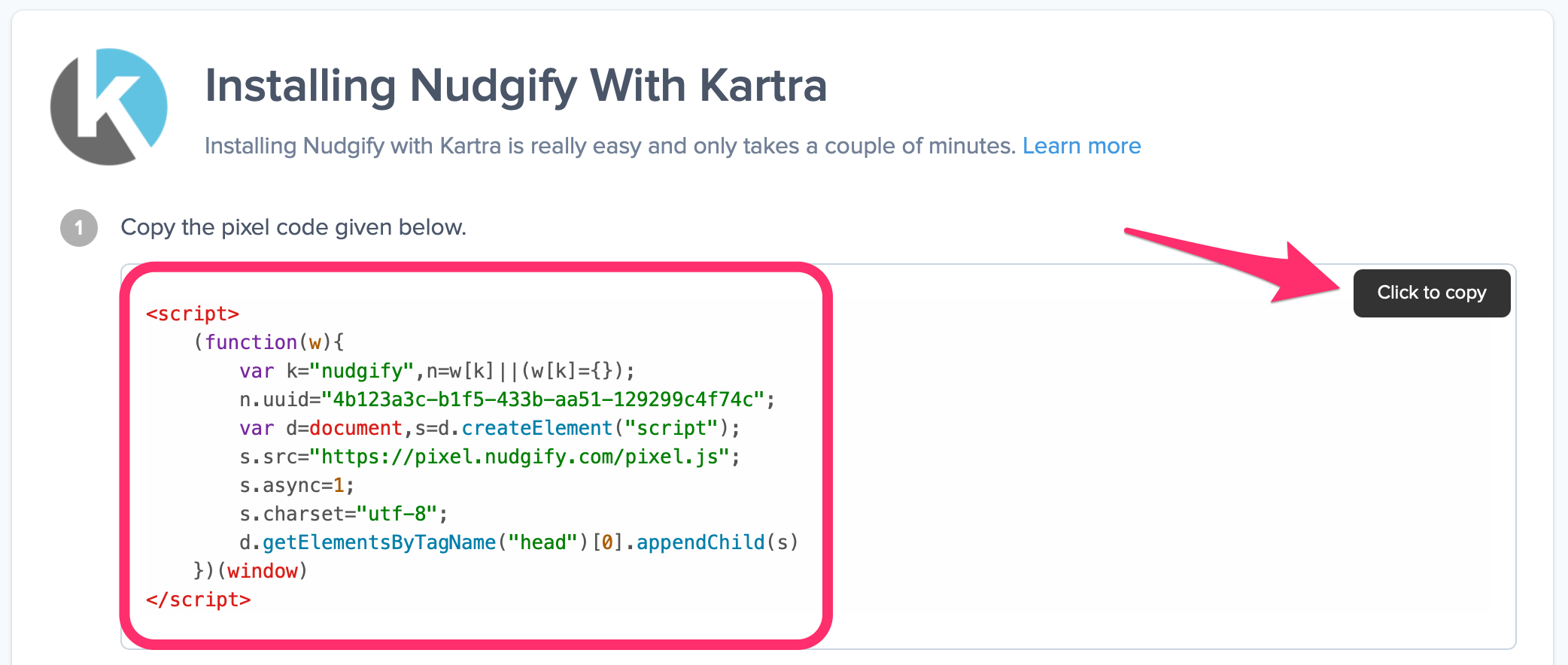
Now a window will open in which you can see a step-by-step guide on how to install your Nudgify Pixel. This Pixel is nothing more than a small line of code that you need to copy and paste into the code of your website.
Copy your Nudgify Pixel code:
Step 2: Add your Pixel code to Kartra
- Login to Kartra and go to “My Pages”
- Open the page you want to show Nudges on
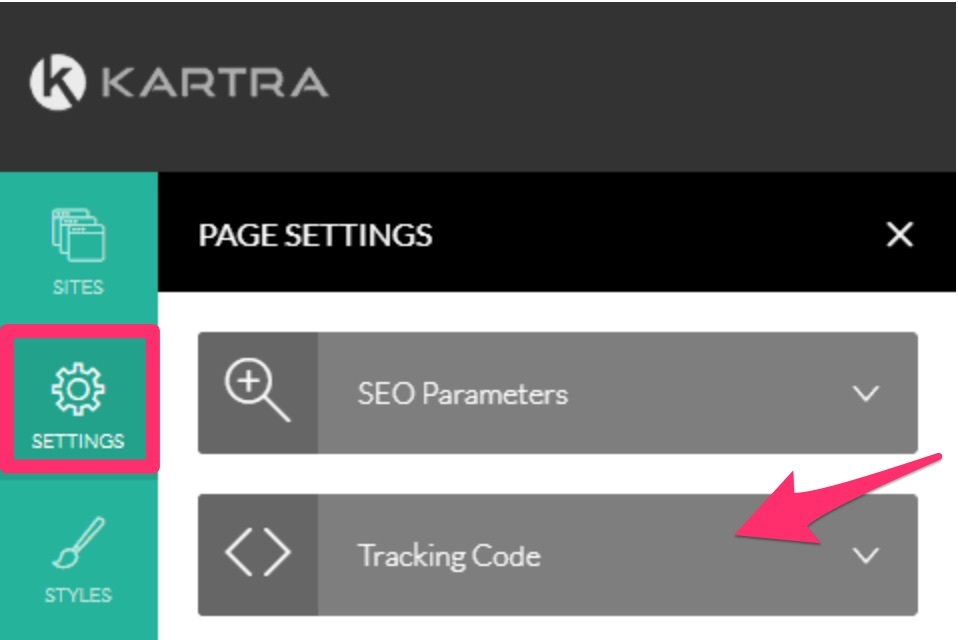
- Click “Settings” on the left menu and then “Tracking Code”
- Paste your Nudgify Pixel in the box that says “EMBED TRACKING CODE INTO THE <HEAD>”
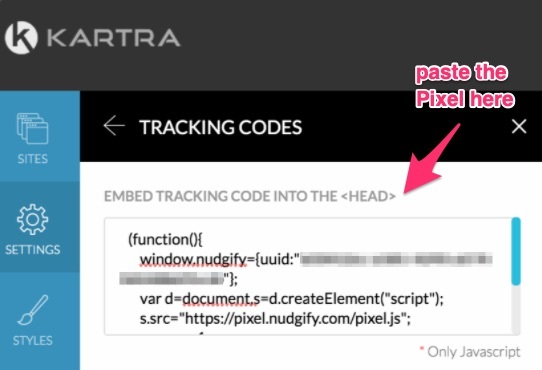
- Remove the <script> </script> tags around the Pixel
- Apply changes and Save the page
- Repeat this for all the pages you want to show Nudges on
Step 3: Check if the Pixel is installed
- Go to your Profile icon, select Sites & Organizations, and choose the website you want to check. Then click the <> symbol and select Check Pixel to verify that the Pixel has been installed correctly.

- Do you see the green “Pixel Active” message and the red dot in the top left corner turn green? Congratulations, you have added the Nudgify Pixel to your Kartra landing page!
- Do you NOT see the green “Pixel Active” message? This means that you haven’t yet installed your Pixel. Click the blue chat bubble in the app where we can assist you 1-on-1 on setting up your Pixel.
You can now start adding Social Proof and FOMO Nudges to your Kartra website!
