.png)
SurveySparrow – Connect Sign-Ups
Turn your Surveysparrow contacts into Social Proof
Surveysparrow is an online survey platform that allows users to create and distribute surveys for various purposes, such as market research, customer feedback, employee engagement, and more. SurveySparrow is known for its conversational and user-friendly survey design, which aims to improve respondent engagement. Users can design forms using a simple drag-and-drop interface without the need for coding skills.
You can easily connect Surveysparrow to Nudgify with our Surveysparrow integration to showcase Social Proof notifications on your website, in real-time.
Connect Surveysparrow Sign-ups
The following data from Surveysparrow will be synced with Nudgify in order to build Nudges:
- First Name
- Last Name
Follow the steps below to connect your Surveysparrow user data to Nudgify and show new contacts in Sign-up Nudges.
Step 1. Copy Your Webhook URL
To manage your integrations, click the “Integrations” button on the left-hand sidebar. This will take you to the Integrations page, where you manage your integrations with other apps and software. Find Surveysparrow Sign-Ups in the list and click “Connect”.
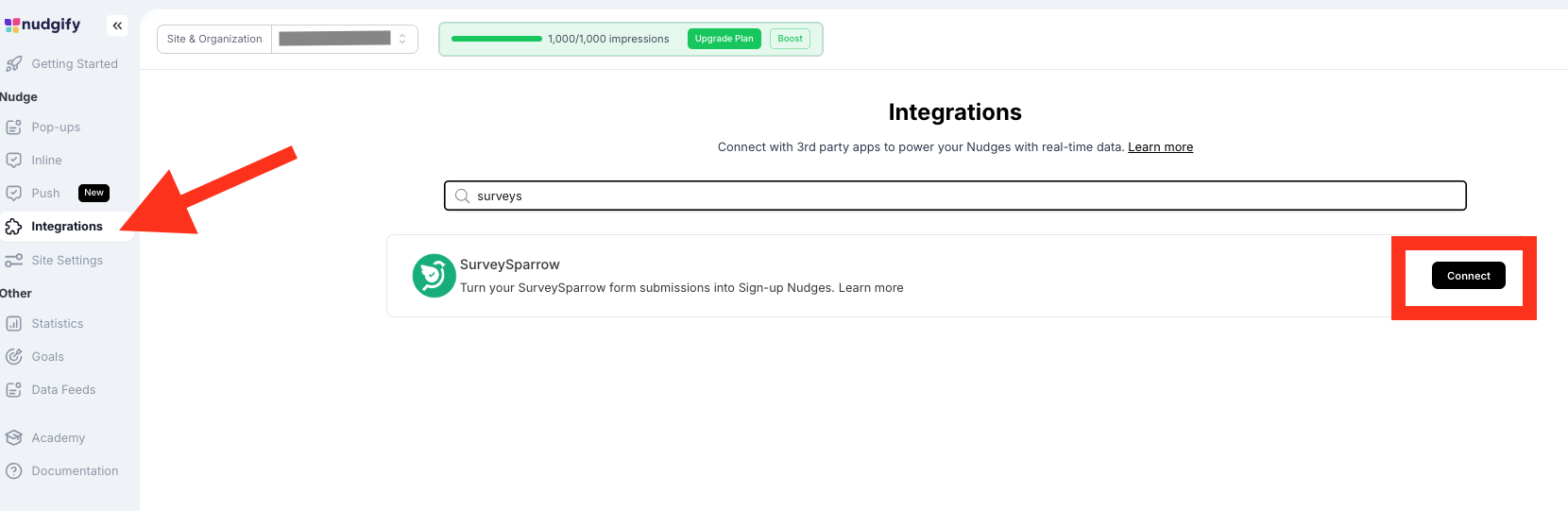
Click to copy your Nudgify Webhook URL
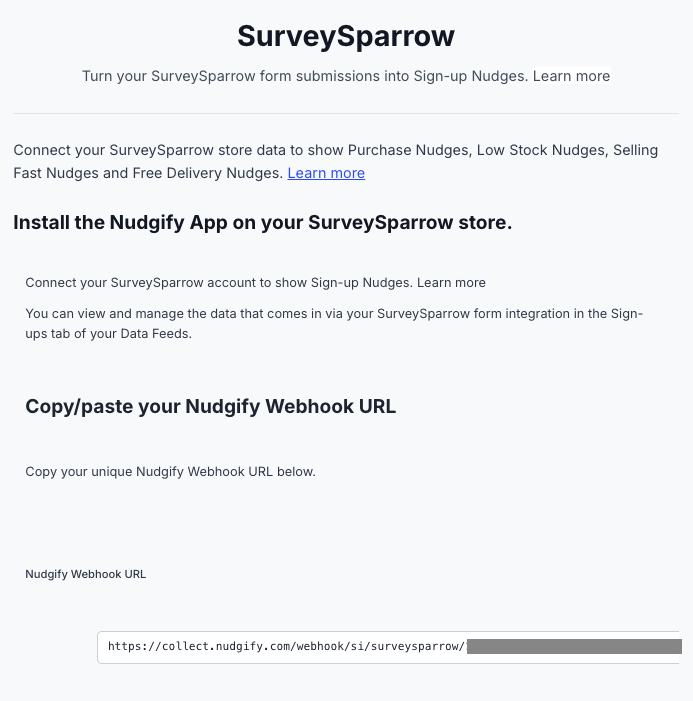
Step 2. Create a Webhook in Surveysparrow and paste your Webhook URL
You will now paste your Nudgify Webhook URL in the right place in your Surveysparrow account so that new user data is sent automatically to your Nudgify account.
You can find here the Surveysparrow instructions for using Webhooks.
As a summary, follow these steps in your Surveysparrow dashboard:
- Open the Survey Form you want to integrate with.
- In the Form Builder, go to Integrate Tab.
- Select Webhooks > New Webhook.
- Copy your SurveySparrow Webhook URL from your Nudgify account.
- Paste your Nudgify Webhook URL in the Webhook URL field.
- Scroll down to the Content section.
- Add your form contents by clicking on the Dollar Sign and selecting each fields.
- Add First Name under questions and rename the property to “first_name”.
- Add Last Name under questions and rename the property to “last_name”.
-
Add Email under questions and rename the property to “email”.

- click on Save Details when you are done.
Go back to Nudgify and click the “I’ve done it” button.
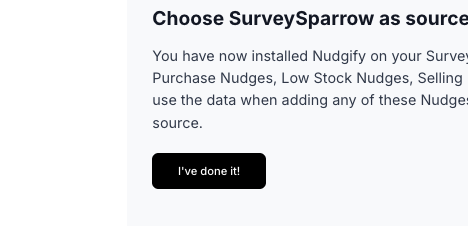
Any new Sign-up will be added to your Sign-ups Data Feed. To turn these data into Social Proof Nudges on your site, create a Sign-up Nudge and select Surveysparrow as the data source.
Congratulations! You have now linked your new Surveysparrow sign-ups to Nudgify.
Step 3. Create Sign-ups Nudges for new Surveysparrow Users
On your Data Feeds page, in the “sign-ups” tab, you will be able to see any new contacts that are sent to Nudgify. It’s time to start showcasing new Surveysparrow sign-ups in Social Proof Nudges!
You can create two types of Nudges with the Surveysparrow sign-ups integration.
- Recent Sign-Ups Nudges that show single sign-ups
- All Sign-Ups Nudges that show a count of multiple sign-ups
Show Recent Activity – Sign-ups
Go to the Nudges page and click “Add Nudge”. Choose the Nudge labeled “Recent Activity – Sign-up” from the Nudge Library.

You can now configure the selected Nudge. First of all, select “Surveysparrow Sign-Ups” as the data source. This way, the Nudge will use your Surveysparrow data to show in the Nudge:
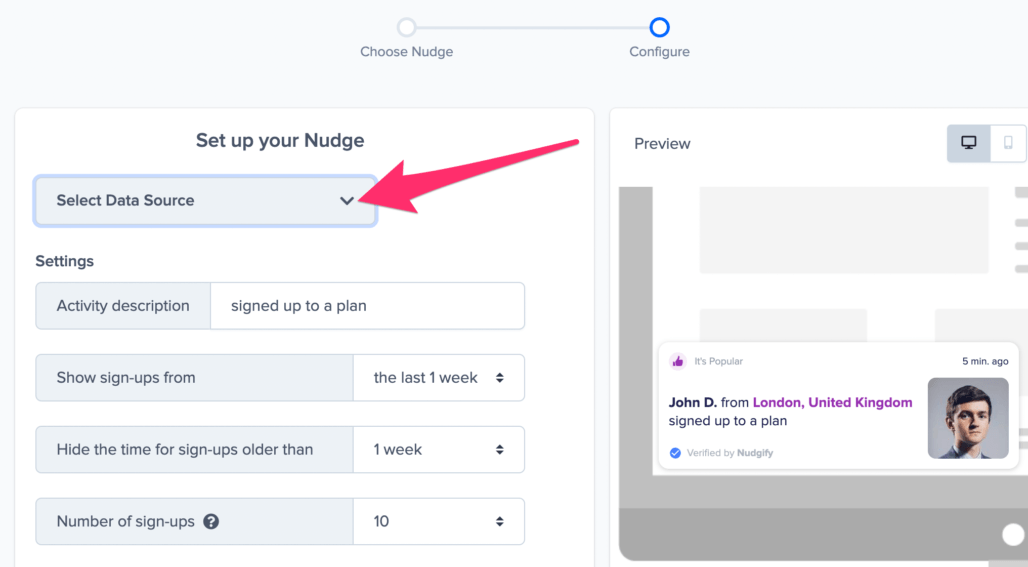
You can also customise the text of the Nudge here (“subscribed to our newsletter”, “signed-up to our mailing list”, or whatever you want to display). You can also select how recent the sign-ups need to be that you want to display. Find out more about the customisation options for Sign-up Nudges.
Once you’re done, click “Continue”. The Nudge will now automatically capture and show individual recent sign-ups. You can track how your Nudges perform from your Statistics page.
Show All Sign-ups
When creating a new Nudge, choose the “Recent Activity – All Sign-ups” Nudge in your Nudge Library:

You can now configure the selected Nudge. First of all, select “Surveysparrow Sign-Ups” as the data source. This way, the Nudge will use your Surveysparrow data to show in the Nudge:
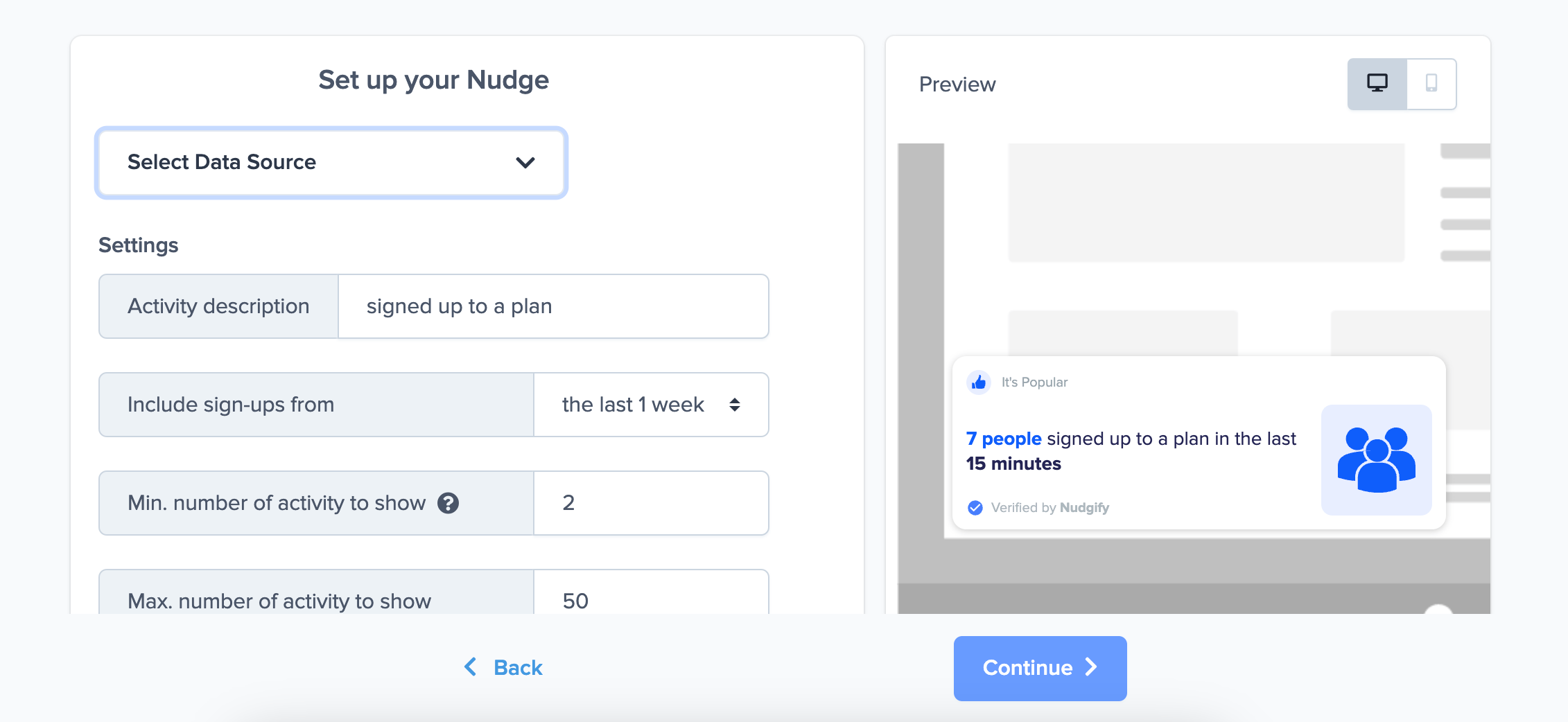
You can also customise the text of the Nudge here (“subscribed to our newsletter”, “signed-up to our mailing list”, or whatever else you want to put down). You can also select how recent the sign-ups need to be that you want to display, and set a minimum and maximum number of Sign-ups. Find more about the customization options for Sign-up Nudges.
Click “Continue”. The Nudge will now automatically capture and show a summary of recent subscriptions. You can track how your Nudges perform from your Statistics page.
That’s it! 👍
All your new Surveysparrow Sign-Ups will now be turned into powerful Social Proof automatically and display Nudges on your site.
