.png)
Checking if your Nudgify Pixel is Installed Correctly
You don't have to guess if your installation worked. We have a built-in monitor that tells you exactly what is happening.
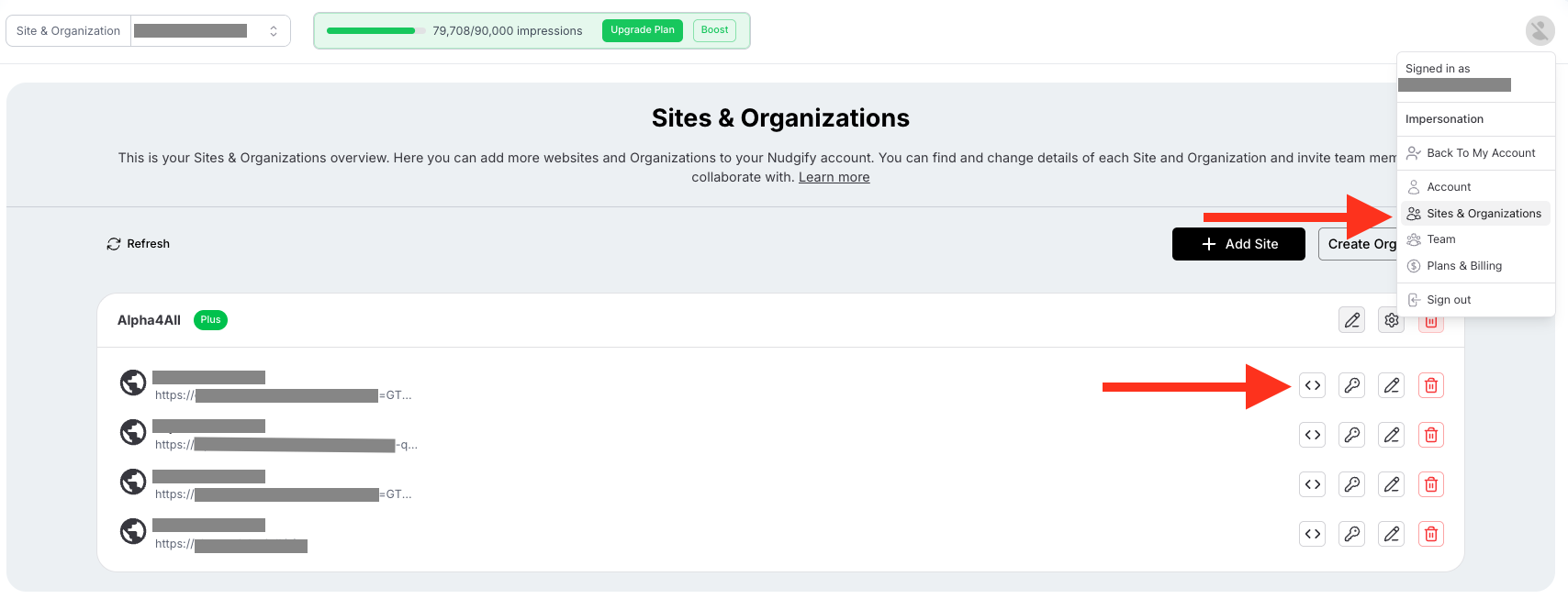
1. Go to your Pixel Settings
- Click the Profile Icon in the top right corner.
- Select Sites & Organizations.
- Find the website you want to check and click the Pixel Setup button (the
< >icon).
2. Check the Status Click the "Scan for Pixel" button.
- Success: If you see a success message, you are all set! Your Nudges are ready to show.

- Error: If it says "Pixel Not Active," Nudgify cannot find the code on your site yet. Follow the troubleshooting steps below. 👇
Troubleshooting: "Pixel Not Active"
If the scanner can't find your Pixel, it is usually due to one of two simple reasons.
Solution 1: Check your Site URL
The scanner looks for the Pixel on the exact URL you entered in your settings. If you typed myshop.com but your site is actually www.myshop.com , the scanner will fail (even if the Pixel is installed correctly!).
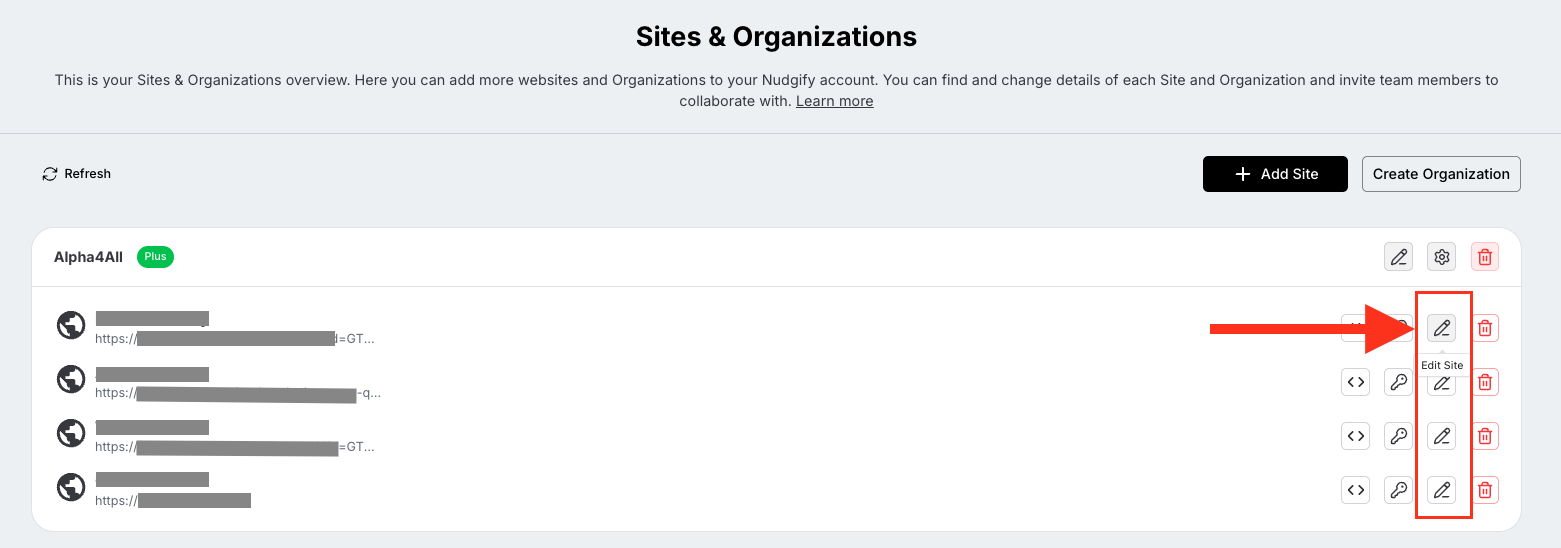
- Stay on the Sites & Organizations page.
- Check the URL listed next to your website.
- If there is a typo (or missing
www), click the Pencil Icon to fix it. - Go back to the Pixel Setup (
< >) and scan again.
Solution 2: Check your website code (Chrome Method)
If the URL is correct, let's check if your browser is actually loading the Nudgify script. You can do this quickly using Google Chrome.
- Open your website in a new Google Chrome tab.
- In the top menu bar, click View > Developer > Developer Tools.
- A panel will open. Click the Sources tab at the top of that panel.
- Look at the file list on the left side.
- Do you see
pixel.nudgify.com? Good news—you have installed the Pixel correctly! The scanner might just be cached. You can ignore the warning and start creating Nudges. - Do you NOT see it? Your Pixel is not active on the page. Please go back to the installation guide and ensure you pasted the code in the correct
<head>section.
Still stuck? If you have tried both steps and still can't verify your Pixel, click the black chat bubble in the bottom right corner. We’ll help you get it sorted!
