.png)
How to Install Nudgify on Any Website
Getting started is fast. You can install Nudgify on any website in just a couple of minutes.
You’ll be installing our "Pixel"—a tiny snippet of code (similar to Google Analytics) that acts as the bridge to show Nudges on your site.
Step 1: Get your Pixel
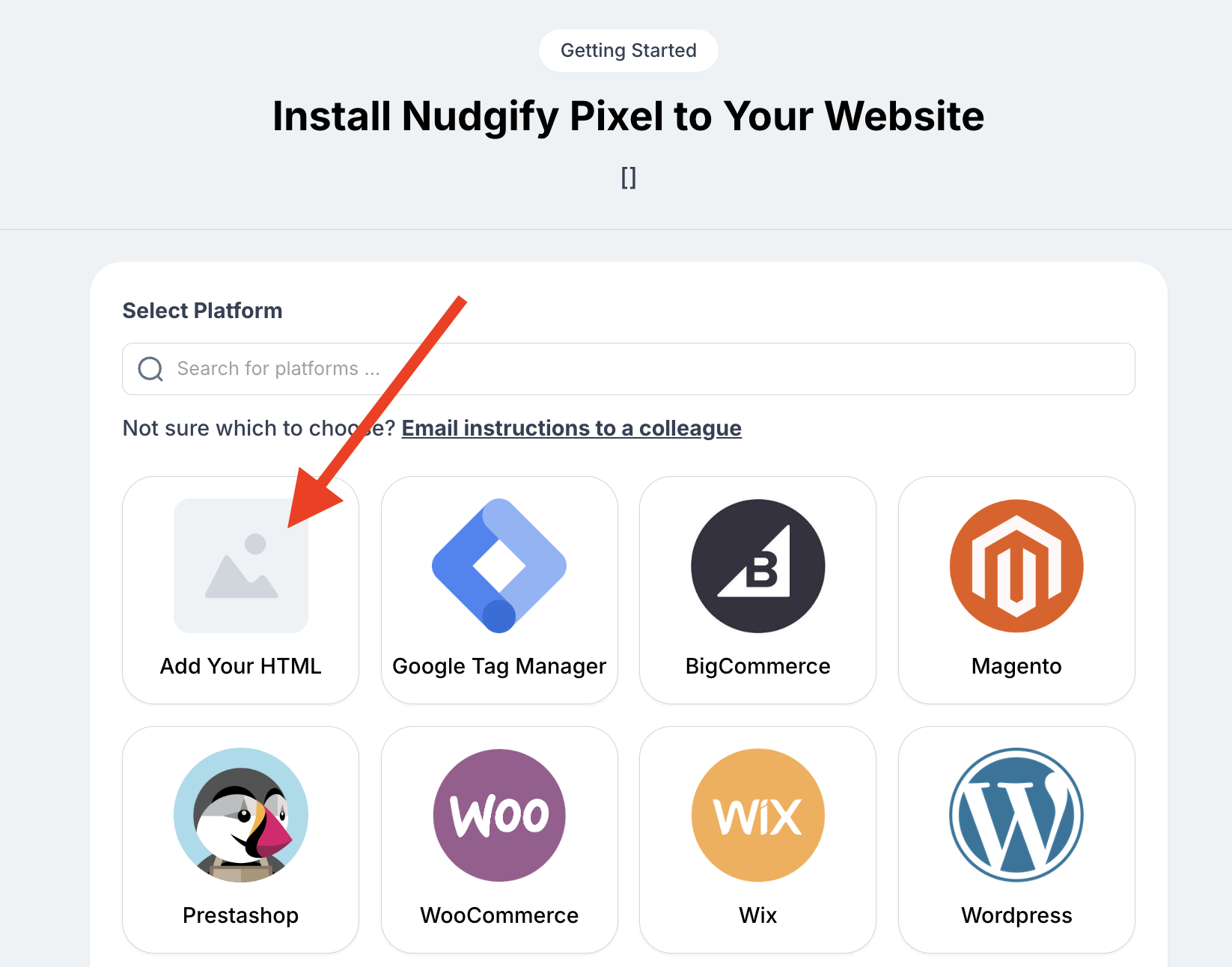
- Log in to Nudgify and select 'Add your HTML' as your integration.
-
Copy the code snippet shown in the box.

Step 2: Add it to your site
You need to place this code in the Head section of your website. Choose the method that fits you best:
- Option A: Using a Website Builder (Wix, Squarespace, etc.)
You usually don't need to touch raw code. Look for a setting in your dashboard called "Custom Code," "Header Code," or "Script Manager." Simply paste your Pixel there. If asked where to place it, always choose Head.
- Option B: Editing Source Code
If you have access to your site's HTML, locate the closing </head> tag. Paste your Nudgify Pixel code on the line right before that tag.
- Option C: Google Tag Manager
Prefer not to touch site settings at all? You can use a "Custom HTML" tag in Google Tag Manager to fire the Pixel.
Step 3: Verify it works
To check if your Pixel is working, navigate to My Profile > Sites & Organizations. Select your website from the list and click the Pixel Setup button (look for the < > icon).


What if it says "Pixel Not Active"?
Check 1: Did you enter the correct URL?
Sometimes the Pixel is installed correctly, but Nudgify is looking at the wrong address (e.g., you typed yoursite.com but the actual site is www.yoursite.com ).
- Go to the Sites & Organizations page in your dashboard.
- Check the URL listed next to your website.
- If there is a typo, click the Pencil Icon to fix it.
- Go back and click Scan for Pixel again.

Check 2: Verify the code in your browser
If the URL is correct, let's check if your browser is actually loading the Nudgify script. You can do this using Google Chrome:
- Open your website in a new Chrome tab.
- In the top menu bar, click View > Developer > Developer Tools.
- A panel will open (usually on the right or bottom). Click the Sources tab.
- Look at the list of files on the left side of that panel.
- Do you see
pixel.nudgify.comin the list? Great! Your Pixel is actually working. The scanner might just be cached. You can ignore the warning and start creating Nudges. - Do you NOT see it? The Pixel is not active on your page. Please go back to the installation steps and ensure you pasted the code in the correct
<head>section.
Need a hand?
If you can't get the green light, don't worry. Click the black chat bubble in the app.
