.png)
Magento 1 Integration for Nudgify
How to install Nudgify on Magento 1
Installing Nudgify with Magento 1 is really easy and only takes a couple of minutes.
Note: If you want to install Nudgify on Magento 2 (Adobe Commerce), see our integration guide : Magento 2 Integration for Nudgify.
Step 1: Get your API Keys from Nudgify
Just sign up for Nudgify and select Magento as your integration.
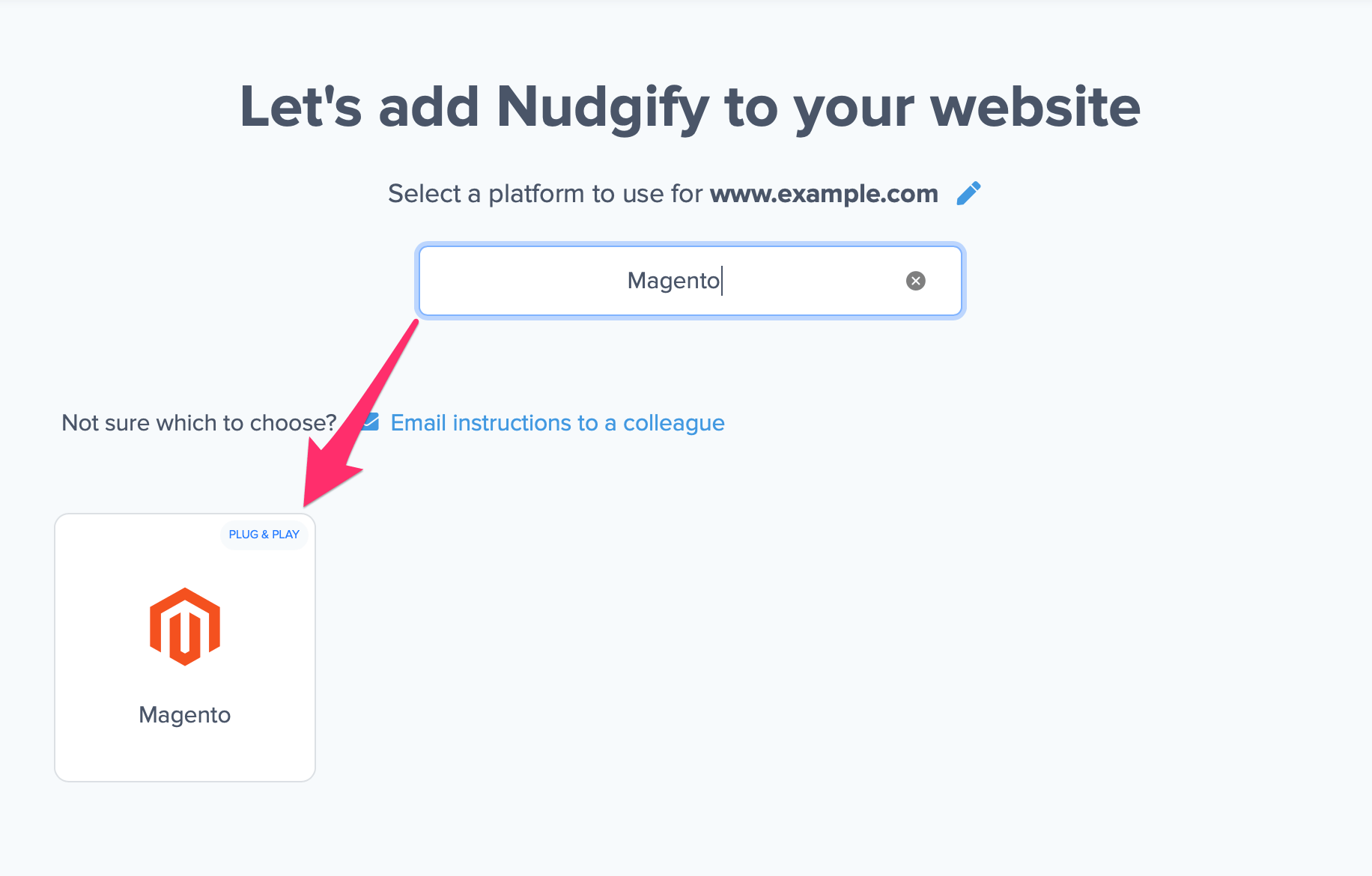
Now a window will open in which you can see a step-by-step guide on how to install Nudgify on Magento.
Copy your Nudgify Site Key and API Key:
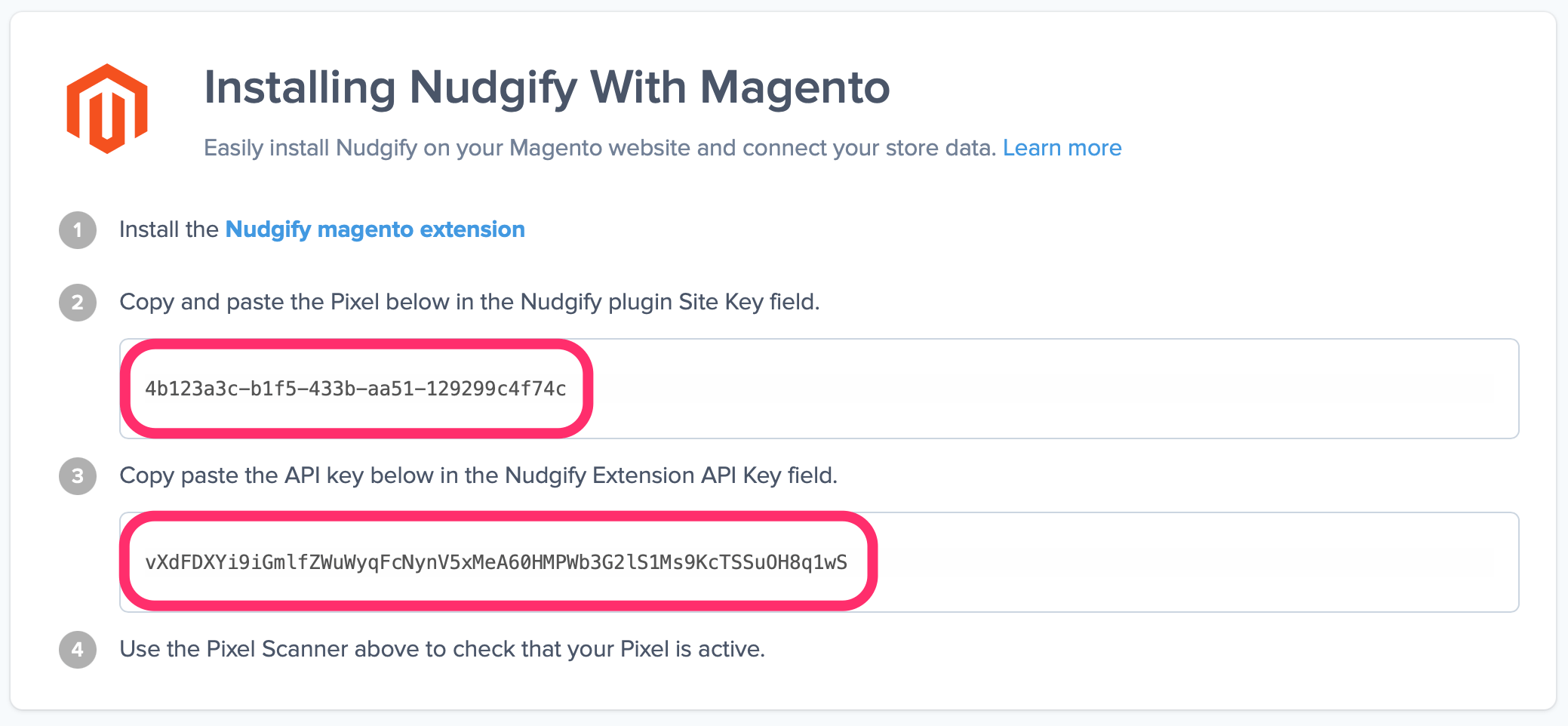
Step 2: Paste the Pixel into the Miscellaneous Scripts box
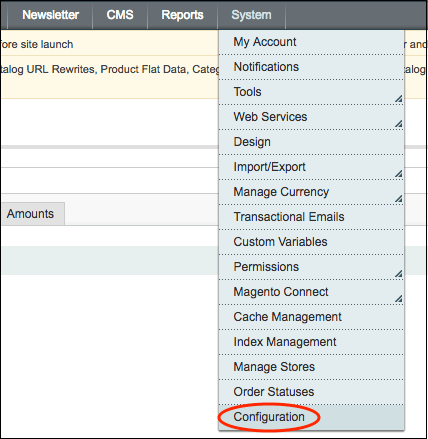
- Login to your Magento Admin Panel and click on “System” and select “Configuration” from the drop down menu.
On the left tab, click on “Design”
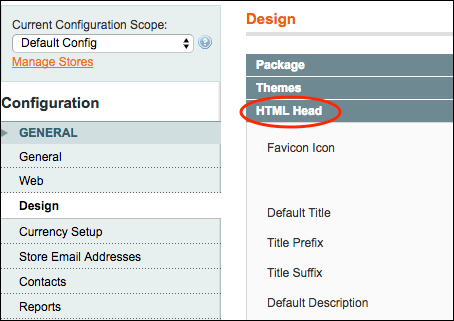
In the “HTML head” section, paste the Nudgify pixel in the “Miscellaneous script” section.
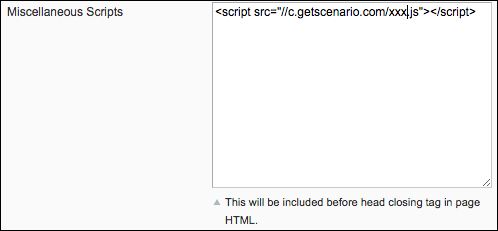
Click the “Save Config” button.
Step 3: Check if the Pixel is installed
Go to your Profile icon, select Sites & Organizations, and choose the website you want to check. Then click the <> symbol and select Check Pixel to verify that the Pixel has been installed correctly.

Do you see the green “Pixel is installed correctly” message? Congratulations, you have installed the Nudgify Pixel on your website and you will be able to see the Nudges you create on the targeted pages!
Do you not see the green “Pixel is installed correctly” message?
This means that you haven’t yet installed your Pixel. Double check that you completed all the steps to install your Pixel and try again.
Is your Pixel still not found?
Click the black bubble in the app where we can assist you.
