.png)
Urgency - Order Soon (Dispatch Deadline)
The Urgency - Order Soon (Dispatch Deadline) Nudge shows online shoppers an order deadline for delivery by a certain date. By giving your visitors a clear time limit, you create urgency around the purchase decision.
This nudge calculates the deadline based on your delivery and dispatch schedule, ensuring the message matches your actual delivery terms.
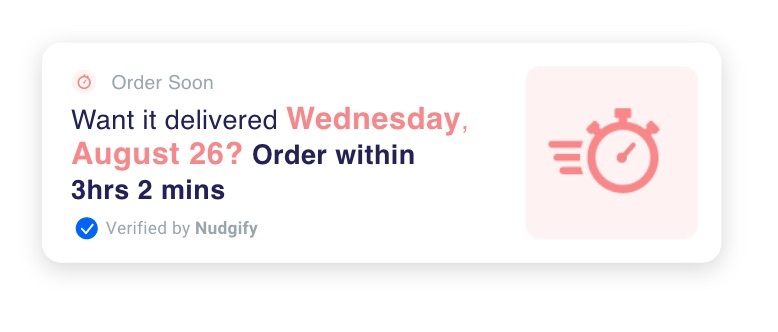
This Nudge is also available as an Inline Nudge. Read how to add Inline Nudges
How does the Urgency - Order Soon (Dispatch Deadline) nudge work?
The Order Soon Nudge knows what time and day of the week it is and calculates the order deadline for delivery by a certain date (e.g. the next day or within a week).
You set how long delivery takes, the days on which you deliver, and the days and cut-off times for dispatch. This way, the message in the Nudge matches your delivery terms.
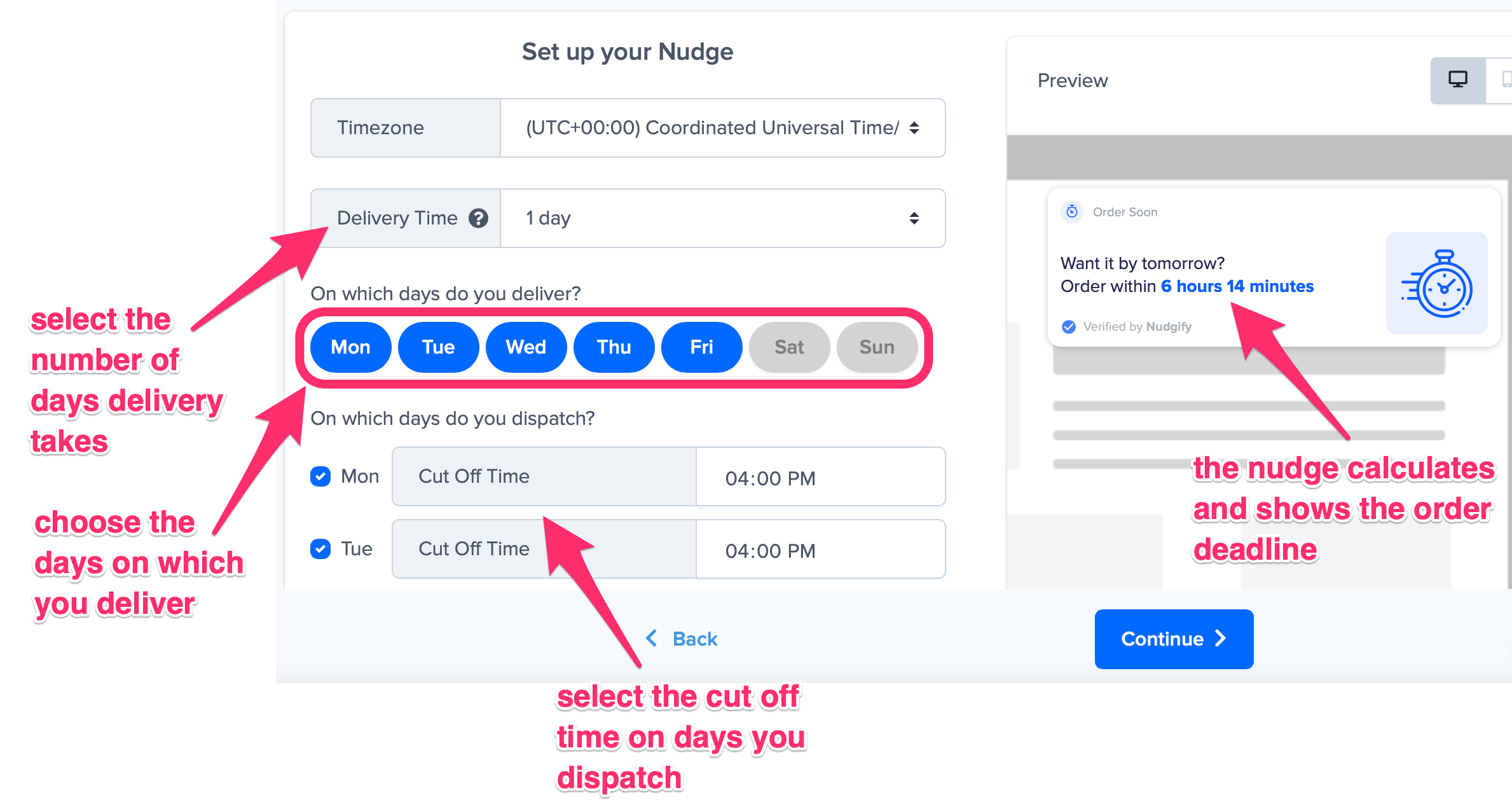
- You set:
- Delivery time
- Delivery days
- Dispatch days and cut-off times
- Timezone
-
Nudgify calculates the deadline and displays a message like:
"Want it by tomorrow? Order within 3 hours"
Example Setup
- Timezone: UTC
- Delivery time: 1 day
- Count delivery in all days: ON
- Delivery days: Mon-Sun
- Dispatch days: Mon-Sun
- Cut-off time: 17:00
-
A visitor in Amsterdam (UTC+1) visiting at 15:00 local time sees:
"Want it by tomorrow? Order within 3 hours"
How to add an Urgency - Order Soon (Dispatch Deadline)
To add an order soon Nudge, follow the steps below
- Go to the Pop-Ups page and click “Add Nudge”.
- In the Nudge Library, select “Urgency - Order Soon (Dispatch Deadline)”

Choose the settings that match your delivery conditions
-
Choose your timezone
Nudgify takes this timezone for the cut-off times you enter. The timezone tells us how we need to adjust the Nudge message in order for it to always show the correct time.
-
Choose the delivery time
This is the time it takes from cut-off time until the delivery moment. If delivery normally takes 1 day, but for example 2 days when you order on Saturday because you do not deliver on Sundays, you can still enter 1 day here. Simply exclude Sunday from your delivery days, and the Nudge will automatically account for this and display the right message.
-
Choose between delivery time in weekdays or all days
This option allows you to tell the Nudge to calculate the delivery time in weekdays. When this option is toggled OFF, all days are counted when the delivery time is calculated. When you toggle this option ON, Saturdays and Sundays are excluded from the delivery time calculations.Example: Your delivery time is 3 days. On Monday, visitors will see that they need to order now for delivery by Thursday. On Friday, visitors will see that they need to order now for delivery by Monday. If you don’t want to count Saturdays and Sundays in the delivery time, then you can toggle this option ON. Now, on Friday, visitors will see that they need to order now for delivery by Wednesday.
-
Choose the delivery days
Select the days on which you deliver. If you do not deliver on e.g. Sundays, deselect this day by clicking on it.
-
Choose the dispatch days and cut-off times
Select on which days you dispatch, and set the cut-off time for each of your dispatch days. The cut-off time you enter is used in the timezone you selected. The cut-off time is the time customers need to order by on that day. You can set different cut-off times on different days if your delivery terms require it.
What if my delivery time differs per product?
No problem! You just create a new Stream for each product page that has a different delivery time.
Example
Dishwashers take 2 days to deliver, but washing machines and dryers have a delivery time of 4 days. In this case, you:
- create one Stream for product pages with washing machines. Here you add an Order Soon Nudge with a 2 days delivery time.
- create a second Stream for the product pages for washing machines and dryers. In this case you add an Order Soon Nudge to this Stream with a 4 day delivery time.
Does the Urgency - Order Soon (Dispatch Deadline) work with my time zone?
The Order Soon Nudge lets you choose from any timezone in the world. Make sure that the cut-off times you enter are relevant for the timezone that you choose. Nudgify automatically adjusts the message in the Nudge for the selected timezone. The Nudge also adjusts the displayed information to the timezone of your visitors.
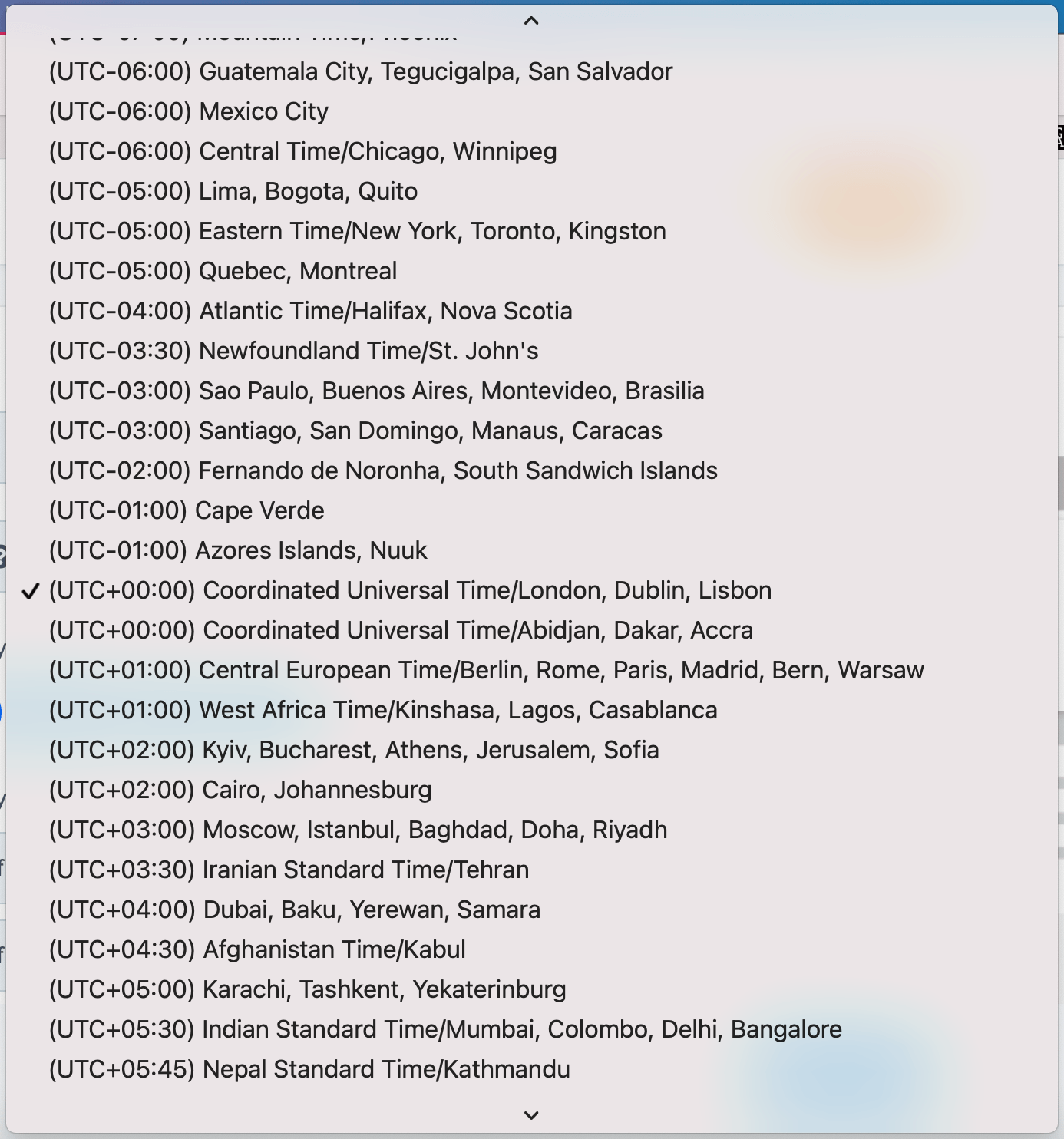
Example
Say you live in Chicago. When you add the Order Soon Nudge, you select Central Time and set the order deadline to 17:00 for next day delivery.
When someone in Los Angeles sees the Nudge at 13:00 Pacific Time, Nudgify knows that 17:00 in Chicago is 15:00 in Los Angeles. The Nudge will account for this and display “Want it by tomorrow? Order within: 2 hours”.
What about Daylight Savings?
The Order Soon Nudge automatically handles Daylight Savings for you. Nudgify knows which timezones have Daylight Savings and when, and automatically adjusts the calculations and Nudge message accordingly.
If you still have any questions about the Order Soon Nudge, how it works or how you can install it, feel free to contact us via the chat support function in the Nudgify App!
