.png)
Sales Pop Counter Notification for Shopify
A Recent Purchase Nudge for all purchases shows the number of people who recently bought a product. By showing that other people buy your products, you turn your sales into powerful Social Proof.
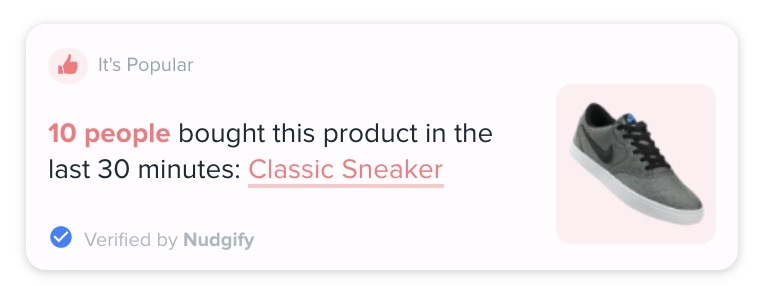
Add a Sales Pop Counter to your Shopify store
Follow the steps below to add a Recent Purchase Nudge with all purchases to your store.
Step 1: To add it to your product pages, go to the Pop Ups tab and click + Add Nudge.
Find the Recent Activity - All Purchases in the Nudge Library. Select and click the cross in the right to choose.


Step 2: Set your preferences
Set your preferences for the Nudge in the Configuration Box that now pops up.

Choose the number of purchases you want to show on your pages
You can decide the minimum and maximum number of sales you would like to show. You can choose any number for your minimum and maximum between 2 and 100.

Do you not want to show the Nudge if there are less than 5 recent purchases to display? Set the minimum to 5. This way, when less than 5 people bought a product in the time frame you chose (e.g. 24 hours), the Nudge will not show.
The Nudge does not show when you have less purchases than the minimum you set.
You can view how many sales you have had recently in the Nudgify Data Feed tab. Read more about your Data Feed.
Choose not to display old sales
By default, Nudgify shows sales that are up to 4 weeks old. You can choose to only show sales that are more recent and hide purchases that are older than e.g. 1 week or 2 days.

Choose whether you want to make your purchase Nudges persistent
Making a Nudge persistent means it stays visible on the page instead of disappearing after a few seconds. It remains on the screen until the visitor closes it, if the close button is enabled.
Learn how persistent Nudges work.


Click Continue, then set up your targeting rules to decide where the Nudge should appear on your site. You can choose to show it across your entire site or only on specific pages.
Once you’re done, click Finish and the Nudge will automatically become active on your page.
Your purchase Nudge is now active on your page(s), and shows your recent sales as Social Proof on your Shopify store. Repeat this process for all the page Groups you want to add the purchase Nudge to.
What information does the Recent Activity Summary show?
To display a summary of recent purchases, Nudgify collects live data from your website. The Nudge collects and displays the following information:
- a picture of the product
- the name of the product with a link to the product page
- how many people bought it
- the time frame in which the purchases took place
When does the Purchase Nudge appear?
The Nudge appears when a minimum of 2 people have purchased a product. You can change this amount in “settings” when editing the Nudge.
You can also choose how recent the purchases need to be for them to be displayed. The maximum amount you can choose is 4 weeks. The Nudge does not collect data on views older than that.
If a product has been purchased more than 100 times within the maximum time frame, the Nudge will display “100+ people…”.
What if my Purchase Nudge does not show?
-
Check your Data Feed
If the purchase Nudge does not show, the first thing to check is if you have purchases in your Data Feed. This is where you can view the Shopify purchases that have been sent through to Nudgify successfully. If the Data Feed is empty, Nudgify has no purchase data to show. You might have to wait for new purchases to come in.Per our Shopify agreement, we cannot collect your historical sales to display Social Proof Nudges. Data collection starts from the moment you activate the Nudge. This means that the Nudge might not show up at first, if you do not have any new sales yet. You can simply wait until the sales come in, and the Nudge will start to show.
I see purchases in my Data Feed, but my Purchase Nudge does not show
If you see purchases coming through in your Data Feed, but the Purchase Nudge you added does not show, there are a few more things to check:
- Check the settings of your Purchase NudgeIf the Recent Purchase Nudge for all purchases does not show up, check your settings. You might have set the minimum too high, or the time frame to narrow. When the number of sales within the set time frame is less than the minimum you chose, the Nudge won’t show. Simply adjust your settings to make the Nudge show.
- Double check if you have activated your Purchase Nudge. Only Nudges that are toggled ON will show on your store.
- Check the page Group to which you have added your Purchase Nudge. Are you looking at the right page(s)? If you have added a Purchase Nudge to your product pages, check if that particular product has been purchased recently. On product pages, the Nudge only shows purchases of that particular product.
