.png)
Order Soon Notification for Shopify
An Order Soon Nudge shows an order deadline for delivery by a certain date. By giving online shoppers a time limit, you create a sense of urgency around the purchase decision, encouraging your customer to complete their order sooner rather than later.
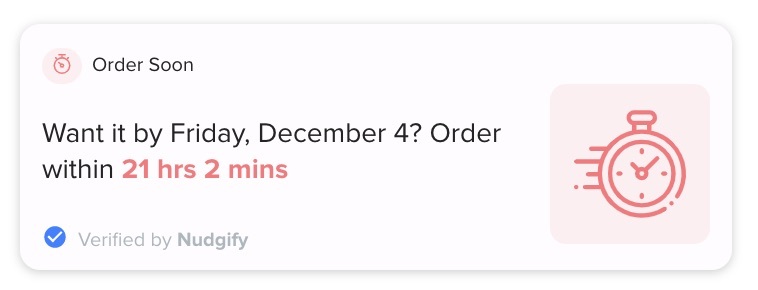
Set Your Own Deadline
The Order Soon Nudge knows what time and day of the week it is and calculates the order deadline for delivery by a certain date (e.g. the next day or within a week).
You set how long delivery takes, the days on which you deliver, and the days and cut-off times for dispatch. This way, the message in the Nudge matches your delivery terms.

Add The Order Soon Nudge
Follow the steps below to add an Order Soon Nudge to your store.
Step 1: To add it to your product pages, go to the Pop Ups tab and click + Add Nudge.
Then find the Nudge you want and click the + icon on the right side to add it.


Step 2: Set your preferences
Choose the settings that match your delivery conditions

Delivery Time
Enter how long delivery usually takes after the cut off time. For example, if delivery normally takes 1 day, you can enter 1 day even if weekends cause delays. The Nudge will automatically adjust the message based on the delivery days you select.
Count Weekdays Only (Optional)
You can choose whether delivery time should count all days or weekdays only.
If this option is ON, Saturdays and Sundays will not be included in the delivery calculation.
Delivery Days
Select the days when you deliver orders. If you do not deliver on certain days, such as Sunday, simply deselect them.
Dispatch Days and Cut Off Time
Choose the days you dispatch orders and set the cut off time for each day. This is the latest time customers can place an order for it to be processed that day. The time will follow your Shopify store’s timezone.
Example:
You choose the following settings for your Order Soon Nudge:
- You set the time zone to UTC
- You set the delivery time to 1 day
- You set the “count delivery time in weekdays” option to OFF
- You choose all days as delivery days (Mon-Sun)
- You choose all days as dispatch days (Mon-Sun)
- You set the cut-off time at 17:00.
Now, say that a visitor from Amsterdam, with time zone UTC+1, visits your site at 15:00 local time. 15:00 in Amsterdam (UTC+1) is 14:00 UTC. This means that the 17:00 UTC cut-off time is 3 hours away. So the visitor will see “Want it by tomorrow? Order within 3 hours”.
Set Different Deadlines for Different Products
If you want to show different deadlines for different products, you can create multiple versions of the same Order Soon Nudge. Simply duplicate or add another Order Soon Nudge and set a different deadline for each one.
Then, use the targeting rules to show each Nudge on the specific product pages where you want that deadline to appear. This lets you display the right delivery or order deadline for different products on your store.

