.png)
Site Settings
In your Site Settings, you can choose the language, appearance, and behavior of your Nudges. These settings help ensure your Social Proof notifications match your website and the way you communicate with your customers.
The settings you configure here apply to all Nudges on your website. You can also customize how Nudges look and behave so they better match your brand and create a more personalized experience for your visitors.


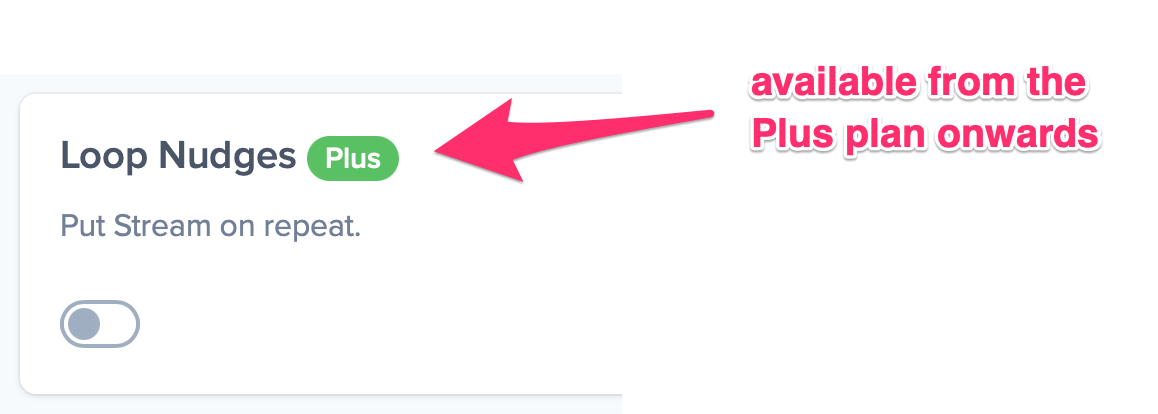
Some settings are available on all plans, while others are only available on higher plans. When a feature is restricted to certain plans, it will be indicated with a green label showing the lowest plan where the feature is available.
Choose a theme
Select whether you want your Nudges to appear with a light or dark background.
You can change this in the Appearance tab.

Select a highlight color
The highlight color you choose is applied to hyperlinks and icons within your Nudges.
You can configure this in the Appearance tab.

Select a position
Choose where your Nudges should appear on your website. Most websites display Nudges in the bottom right corner.


You can change the position in the Appearance tab. To avoid overlapping with other plugins or elements on your site, you can also adjust the vertical and horizontal offset.

Select an animation style
Choose how your Nudges appear on the page by selecting an animation style.
This setting is available in the Appearance tab.

Show only visitors with location
In Site Settings, under the Behaviour tab, you can choose whether to display Nudges only when a visitor’s location is known.

This option is enabled by default, meaning Nudges that include location data will be shown, while Nudges without location information will be hidden.
Adjust timings
In the Behaviour tab, you can control how long Nudges appear, how quickly they appear after one another, and when the first Nudge is displayed.

You can choose between three timing options:
Standard timings
- First Nudge appears after 3 seconds
- Each Nudge displays for 6 seconds
- Time between Nudges is 5 seconds
Accelerated timings
- All timings are 75 percent of the Standard timings
Custom timings
You can manually adjust the timings:
- Display time for each Nudge: 5 to 30 seconds
- Time between Nudges: 1 to 60 seconds
- Initial delay before the first Nudge: 0 to 10 seconds

Loop Nudges
You can choose to repeat your Nudge Stream by enabling Loop Nudges in the Behaviour tab.
Nudges are shown in the order they are arranged in your stream. When looping is enabled, the first Nudge will display again after the last one has been shown.
This cycle continues until the visitor leaves your website.
Looping can be helpful if you only have a few Nudges in a stream or if visitors tend to stay on your site for longer periods.

Close Nudges
You can allow visitors to close Nudges by enabling the Close option in the Behaviour tab.
When enabled, visitors will see a small close icon in the top right corner when hovering over a Nudge.

You can choose between two options:
- Close only the current Nudge, allowing the next Nudges to appear
- Dismiss all Nudges for the rest of the visitor’s browsing session
A session is defined as a continuous period of activity where events occur within 1 hour of each other.
If a visitor leaves and returns after more than 1 hour, a new session begins.
Allowing visitors to close Nudges can be helpful if a Nudge overlaps with important page content or if you want to reduce the number of notifications visitors see.
Limit Nudges per session
In the Behaviour tab of your Nudge Streams, you can limit how many Nudges a visitor sees during a single browsing session.
By default, visitors can see an unlimited number of Nudges.

To set a limit:
- Toggle the option ON
- Enter the maximum number of Nudges to display
You can set a limit between 1 and 99 Nudges per session. Turn the toggle OFF again if you prefer to show an unlimited number.
A session is defined as a continuous period of user activity where events are no more than 1 hour apart.
Randomize Nudges
If you add multiple Nudges, you can display them in a random order. This prevents visitors from always seeing the same Nudge first when a page loads.
This feature is available on the Plus, Genius, and Agency plans. Simply toggle the option ON to enable it.

Make your Social Proof Nudges more anonymous
Popularity and Recent Activity Nudges display information about visitors.
By default, Nudgify shows the visitor location, and for recent activity it may also show the name and product.
On the Plus, Genius, and Agency plans, you can adjust these settings to make your Nudges more anonymous. This option is available in the Site Settings tab.

Find out more about making your Social Proof Nudges more anonymous.
Remove the Nudgify branding
On the Genius and Agency plans, you can remove the Nudgify branding.
Go to the Appearance tab in your Nudge Streams, scroll to Nudgify branding, and toggle the setting OFF.

Edit your Nudge Titles
On the Genius and Agency plans, you can edit or disable the titles shown on your Nudges.
Go to the Appearance tab and scroll to the Nudgify Title section.

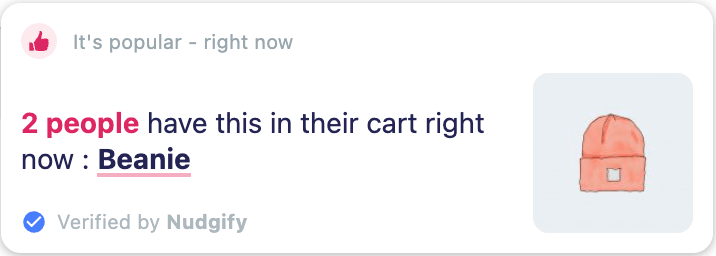
You can change preset titles such as:
- It’s popular
- Order soon
- Selling fast
- Good to know
Titles can be customized up to 40 characters to ensure your Nudges remain visually balanced.
Note: This feature does not apply to Review Nudges, since their titles display the review platform name such as Google, Capterra, or Yelp.
Choose a language
Nudgify supports 32 languages.
You can select your preferred language in the Site Settings tab.

