.png)
Edit Your Nudges
After you have added a Nudge, there are two ways to edit it:
- Via the Nudge configuration box: Use this to make changes to a specific Nudge.
- Via your Site Settings: Use this to apply changes to all Nudges on your site.
Edit the settings of a specific Nudge
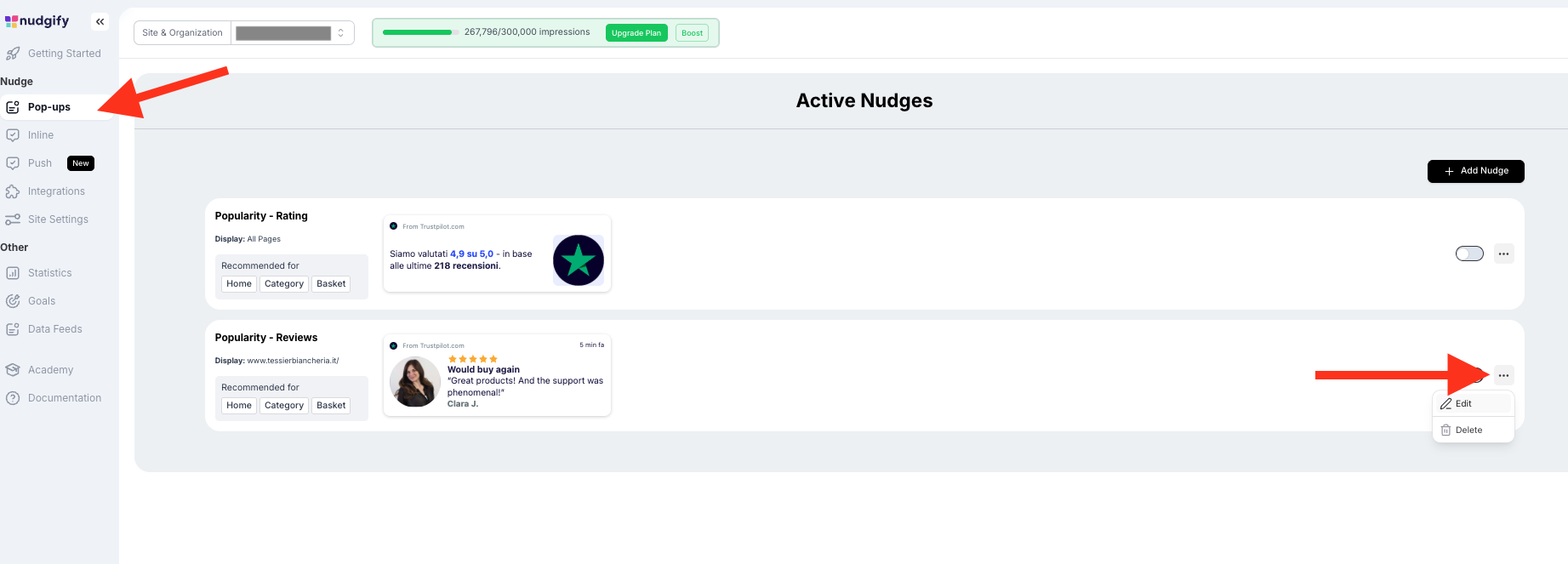
To edit a specific Nudge after adding it, go to the Pop Ups page and click the three dots on the right side of the Nudge, then select Edit to open it.
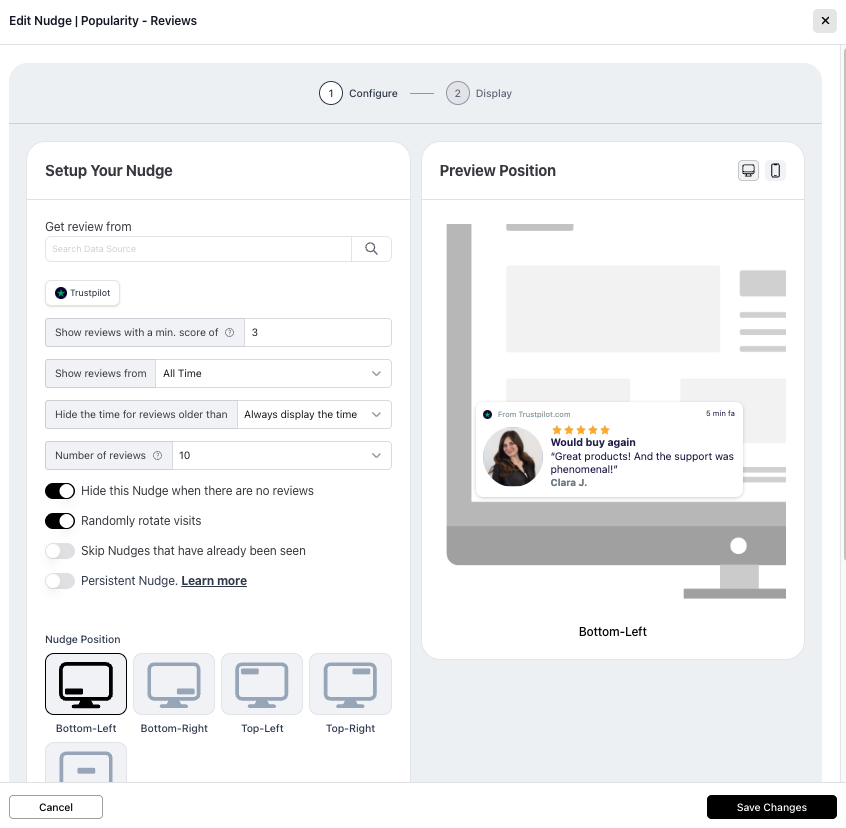
The configuration screen of the Nudge now opens. Depending on the type of Nudge, you can set certain parameters and change settings.
For the Popularity Nudge, for example, you can adjust:
- How you want to refer to visitors
- How recent the visits need to be to be displayed
- The number of visitors you want to show (minimum and maximum)
To see the configuration options for each Nudge type, see this list of guides per Nudge type.
Once you have changed the settings you want, click “Save Changes”.
Edit settings that apply to all Nudges
In your Site Settings, you can change the settings that apply to all your Nudges. These include the highlight color, position, and language of your Nudges.
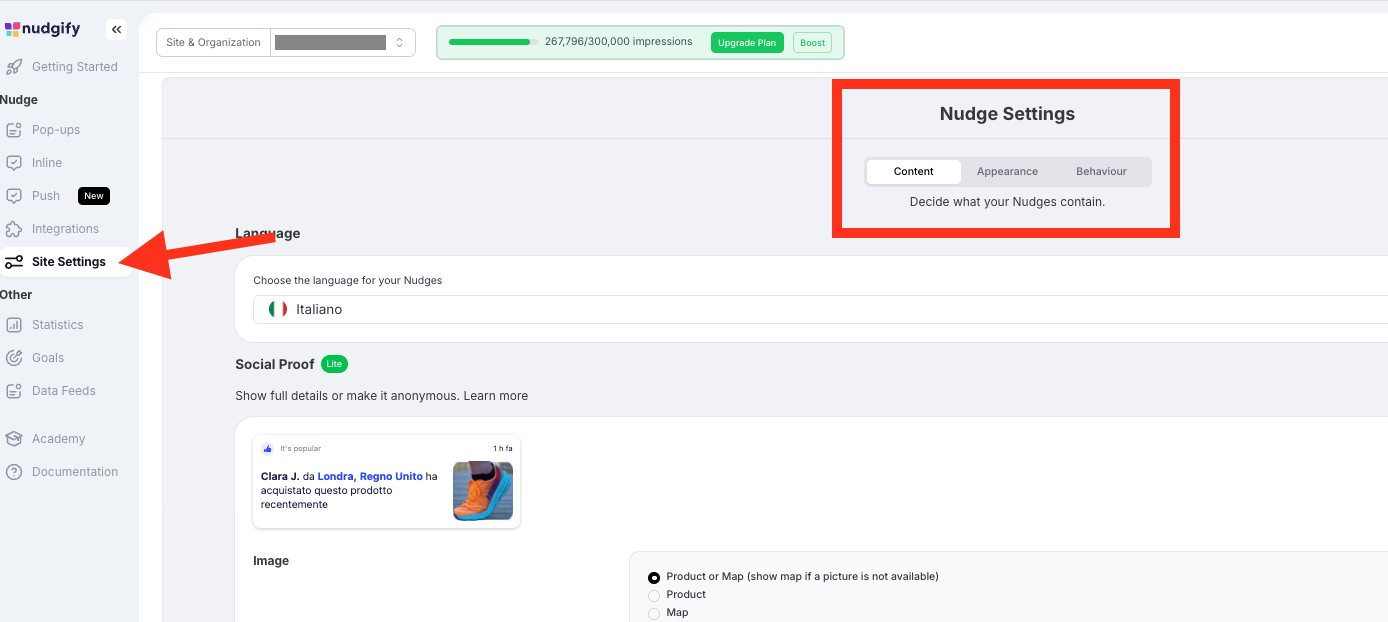
See an overview and explanation of all the different options in your Nudge Settings.
