.png)
URL Targeting – Show on/Exclude Specific Pages
URL targeting allows you to specify on which pages your Nudges will appear. For each Nudge, you can choose to show it across all pages of your site or only on specific ones.
To define your page targeting, go to the Display tab of your chosen Nudge.

Show Nudges on one page
If you want the Nudge to show on only one page, add the exact URL of that page. The domain name of your website is already set, so you only need to add the part of the link that comes after the slash, for example pricing.

Show Nudges on multiple pages
If you want the Nudge to appear on several pages of your site, you can add additional rules to target more pages.

Show Nudges on all pages
If you want the Nudge to appear on all pages of your website, add a wildcard (*) after your domain name. This wildcard means “anything goes here.”

You can add wildcards anywhere in your URL.
For example, instead of creating a new rule for each month as in the example above, you can create one rule using pricing/*.
You can also use wildcards in the middle of a URL, for example pricing/*/subscribe.
Don’t show on
You can also hide a Nudge on a specific page while keeping it visible on all other pages of your site. Click Add rule, change Show on to Don’t show on, and enter the URL of the page where you do not want the Nudge to appear.

Query parameters
Query parameters are expressions added to URLs. They come after the path and form the part of the URL called the query string.

If your URLs include query parameters and you want your Nudges to appear for visitors using these URLs, you should include them in your URL targeting.
For example, setting your URL targeting to Show on www.example.com/newsletter does not include query parameters. This means your Nudges will not show for visitors using tracking variables such as ?utm_medium=mobile.

To include query parameters in your targeting, you can specify them in separate rules.

You can also add an asterisk to include all query parameters in one rule.

If you have any questions about URL targeting or need help setting it up, click the blue bubble at the bottom right for live chat support.
Subdomains
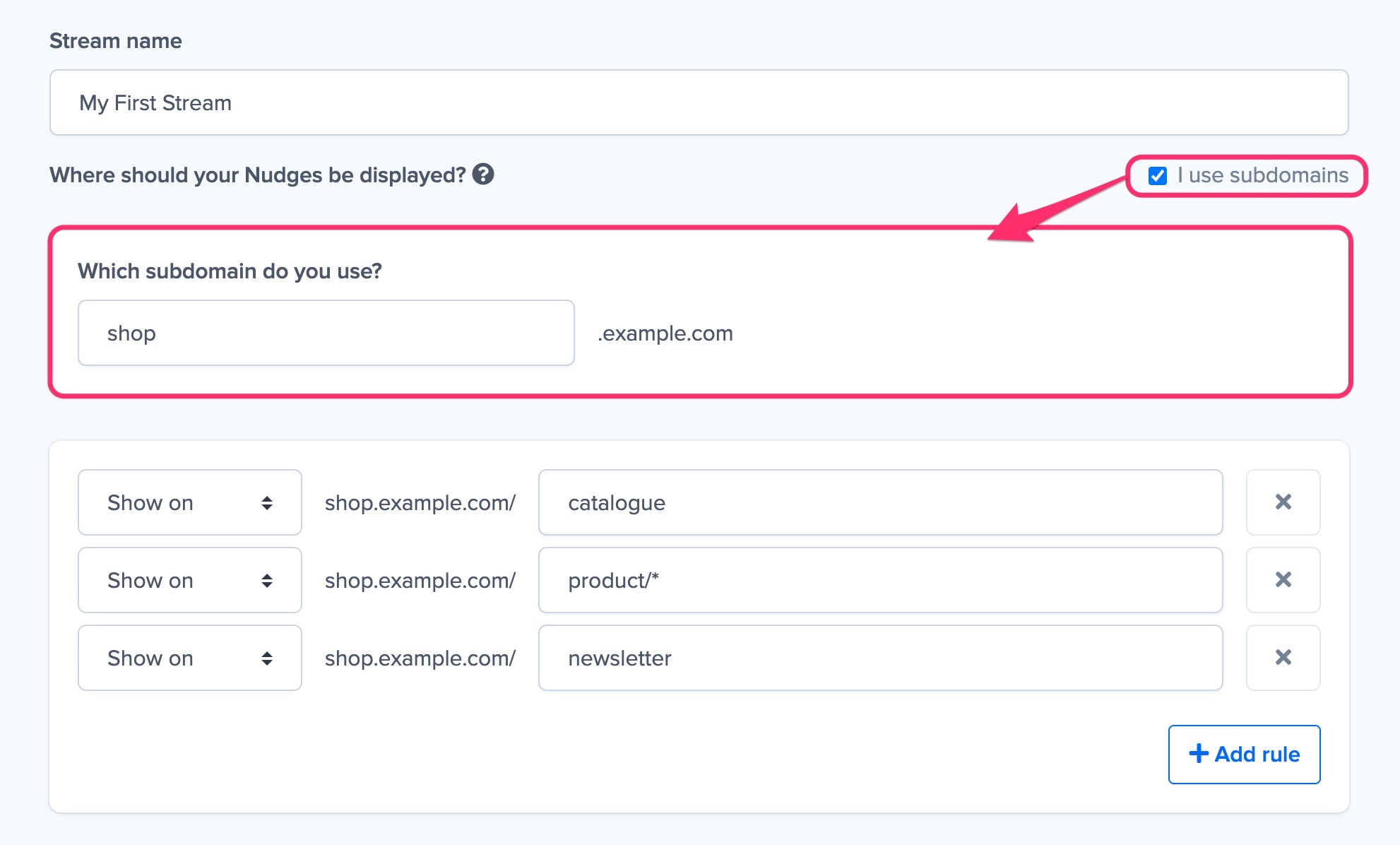
When you add a website to your Nudgify account, subdomains are included. This means that you do not need to add a separate site to your account if you want to show Nudges on multiple subdomains, e.g. on example.com, shop.example.com, and app.example.com.
To show Nudges on a new subdomain, tick the “I use subdomains” box. An option will now appear to add the subdomain.