.png)
Recent Sign-up Nudge
A Recent Sign-up Nudge shows recent sign-ups and subscriptions on your website. By showing your visitors your recent sign-ups for your services or subscribing to your newsletter, you trigger a powerful Social Proof effect.
You can show Single Sign-ups or a summary of All Sign-ups.


Connect data sources
To display recent sign-ups, Nudgify needs to collect live data. Therefore, you need to connect a data source in order to use this Nudge. You can choose to collect data from:
- A mailing list from your ActiveCampaign account using our ActiveCampaign integration.
- A mailing list from your MailChimp account using our MailChimp integration.
- An email form on your website using our Form AutoCapture integration.
- Wix Forms via our Wix integration.
- 100+ different apps via our Zapier integration.
- Connect any app via our Smart Webhooks
- Our REST API (for developers)
You need to choose and configure a data source before you can add a Recent Sign-up Nudge. Until you do, the Continue button is disabled.
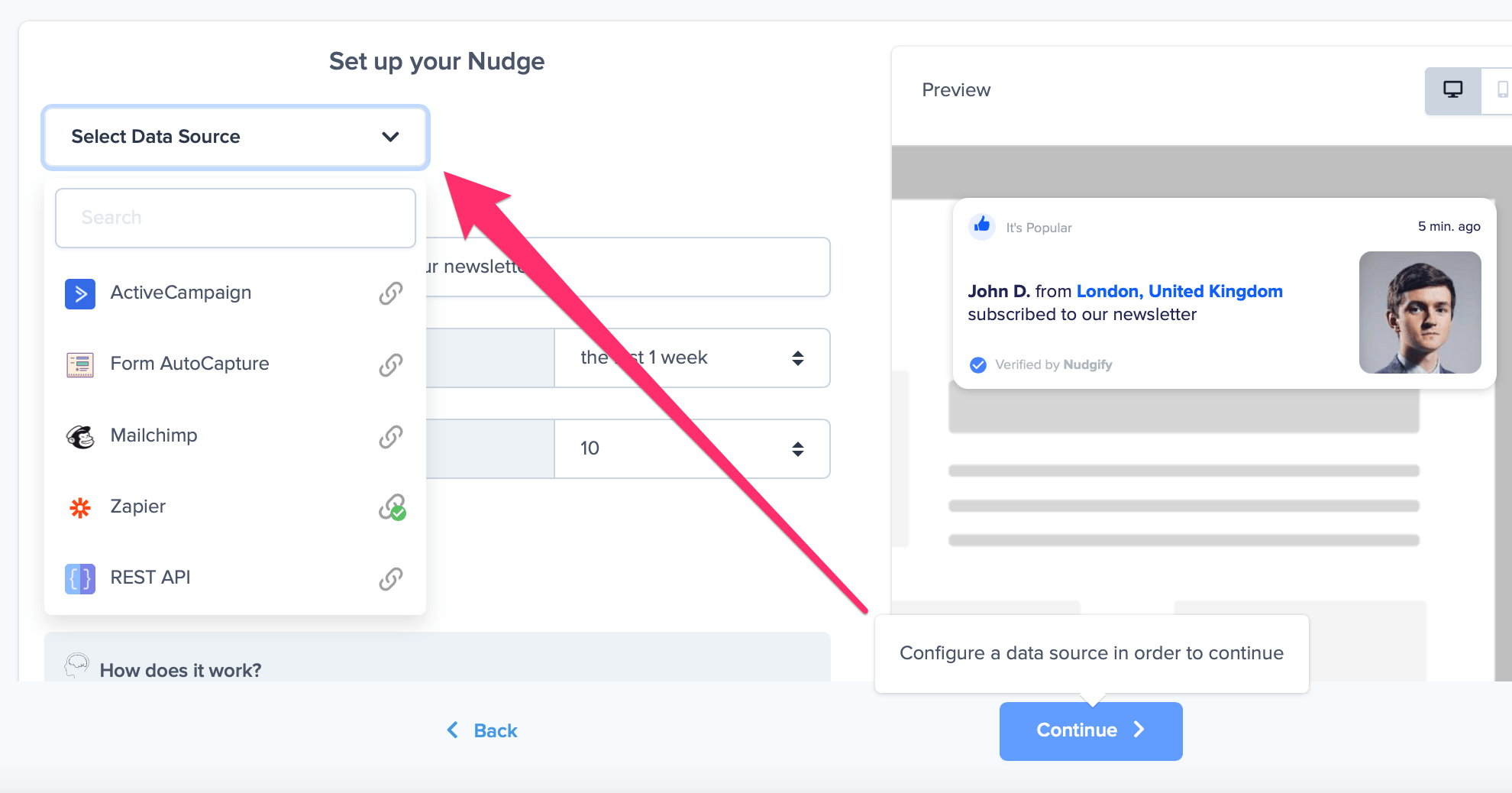
In your Conversion Data Feed, you can view and manage the sign-ups that are being collected from the data source you choose.
Single sign-ups
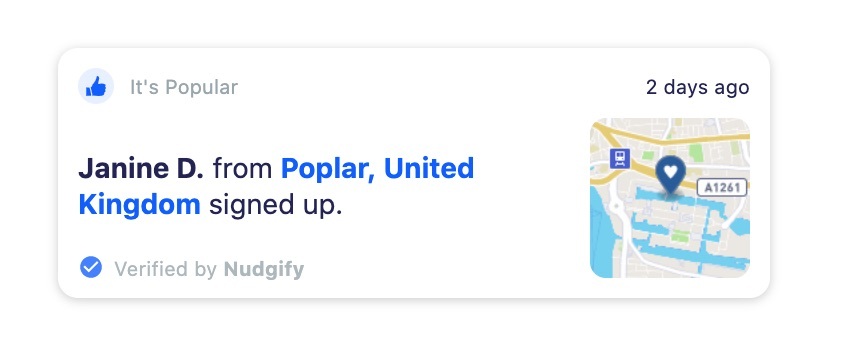
A Recent Sign-up Nudge for single sign-ups shows each individual activity with the name and location of the person. The Nudge also displays an image with a map of the location of the person, or, if the location is not available, a pawn-icon.
Choose an activity description
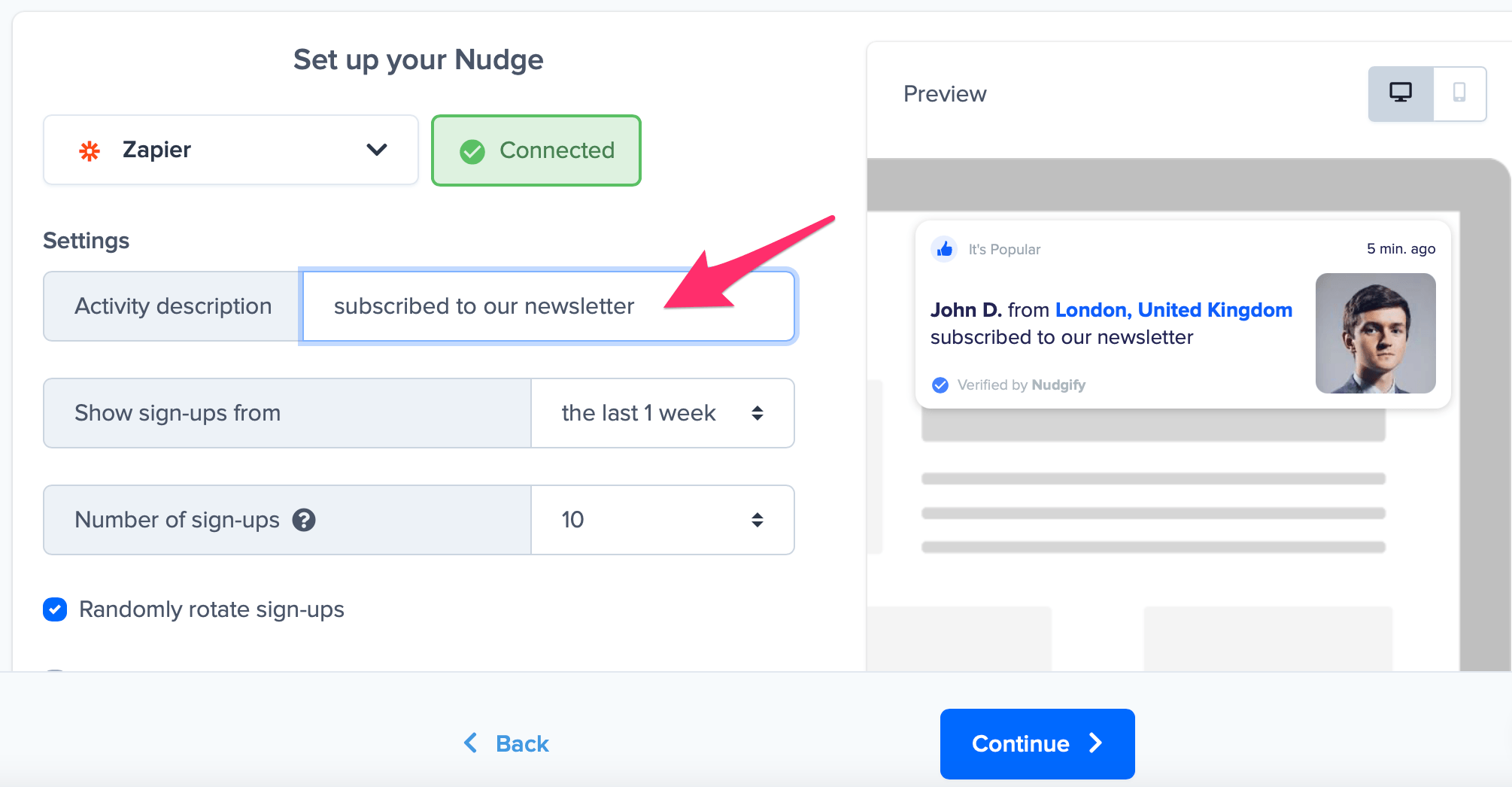
You can choose how to describe the activity on the Nudge, for example ‘downloaded our app’ or ‘subscribed to our newsletter’ or ‘signed up for a plan’.
Use dynamic variables with REST API sign-ups
When using the REST API or Smart Webhooks, you can customize your Recent Sign-up Nudges by passing dynamic values through the signup fields.
For example, you can create messages like:
Ranithu from Sri Lanka saved LKR 20,000/mo and went OffGrid!
To achieve this, you can split your dynamic content across different fields:
| Field | Example Value |
|---|---|
| First Name | Ranithu (saved LKR 20,000/mo) |
| City | Sri Lanka |
| Activity Description | went OffGrid! |
This allows you to create more personalized Social Proof messages while still using the standard Recent Sign-up Nudge format.
Character limit for the First Name field
Please note that the First Name field supports a maximum of 255 characters. Any text beyond this limit will automatically be truncated.
For best results:
- Keep names and dynamic variables concise
- Place shorter dynamic values in the First Name field
- Use the Activity Description field for reusable message text
Recommended use cases
This setup works well for:
- Savings or performance results
- Membership upgrades
- Product activations
- Newsletter milestones
- Custom conversion announcements
For example:
- Anna from Berlin upgraded to Premium!
- Jake from London saved $120 this month!
- Maria from Madrid completed her first booking!
Managing your sign-up data
If you want to replace existing signup data with a new dataset, you can clear your current signup feed before sending updated records through the REST API.
After clearing the data feed, new sign-ups can be sent again and displayed in your Recent Sign-up Nudges.
Only show recent sign-ups
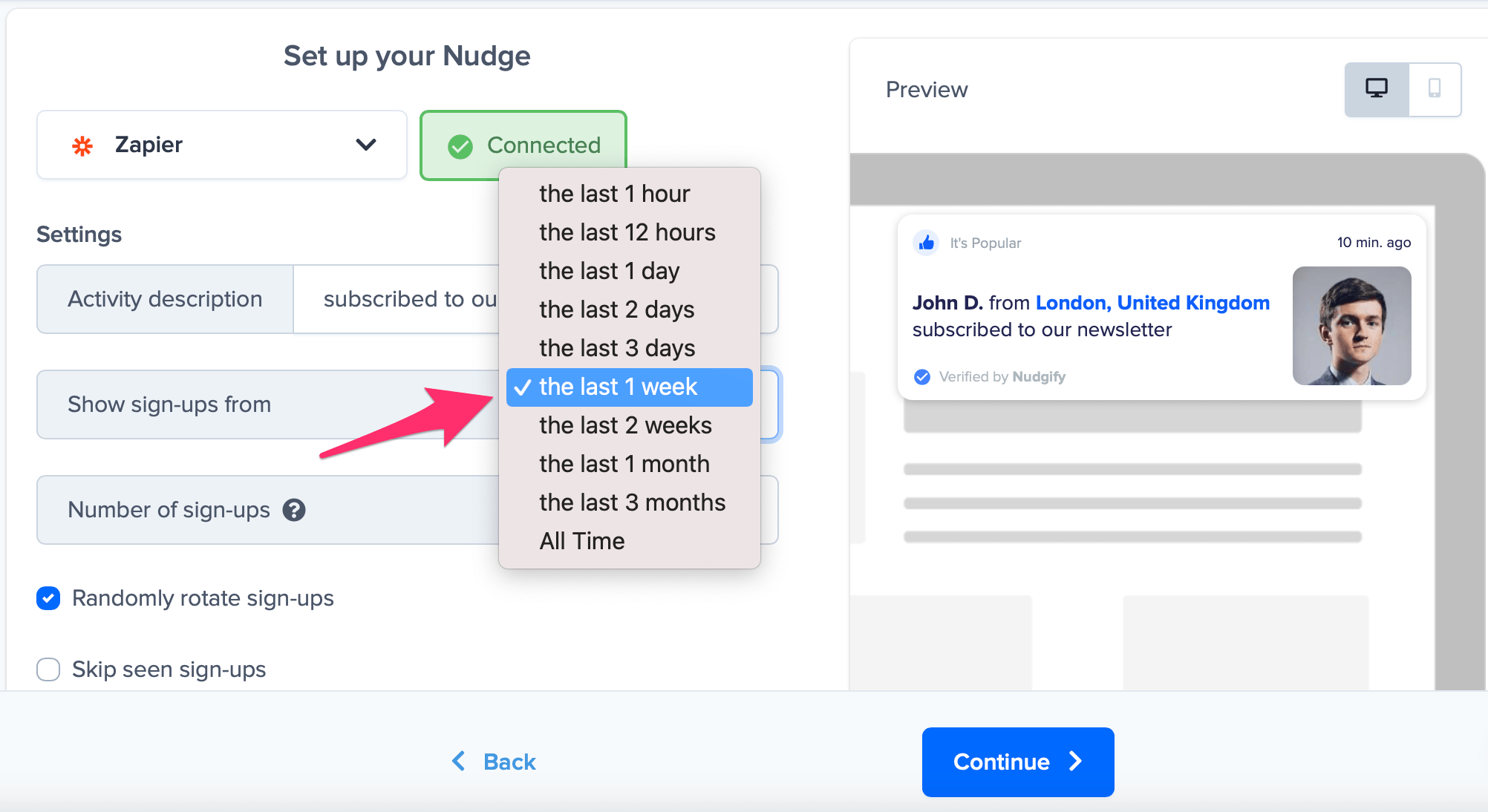
The “Show sign-ups from…” option lets you decide how recent the sign-ups must be to show in a Nudge. You can choose to show sign-ups made in the last day, 2 days, 3 days, week etc. In the top right corner of the Nudge, it displays how long ago the person has signed up.
Hide the time for sign-ups older than…
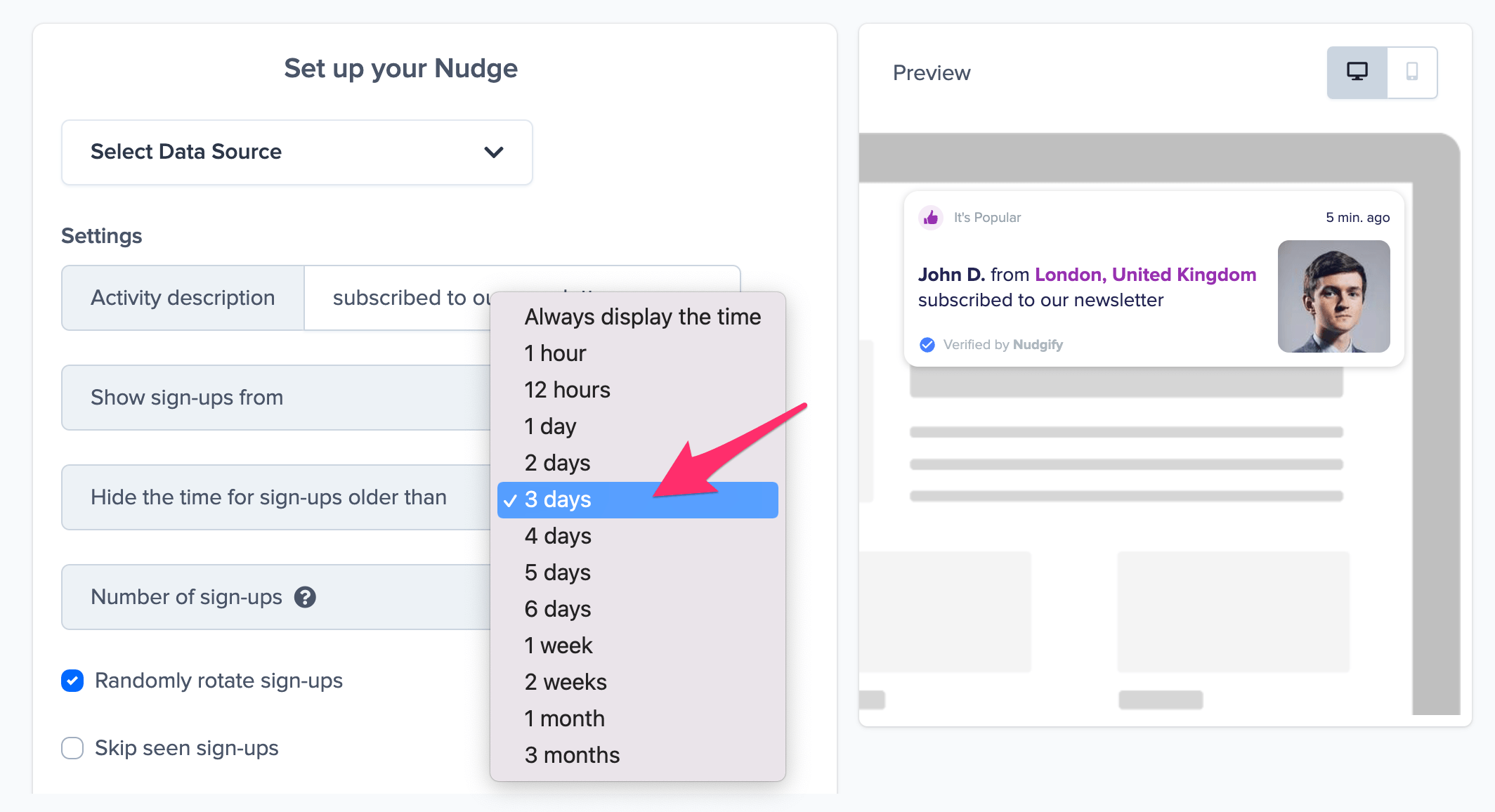
The Nudge displays how long ago someone signed up. The more recent the sign-up, the stronger the Social Proof effect. It’s not always beneficial to display the time of older sign-ups. You can choose to hide the time when sign-ups are older than e.g. 1 hour, 1 day, 1 week etc. This way, you can make sure that the time only displays on Nudges for recent sign-ups.
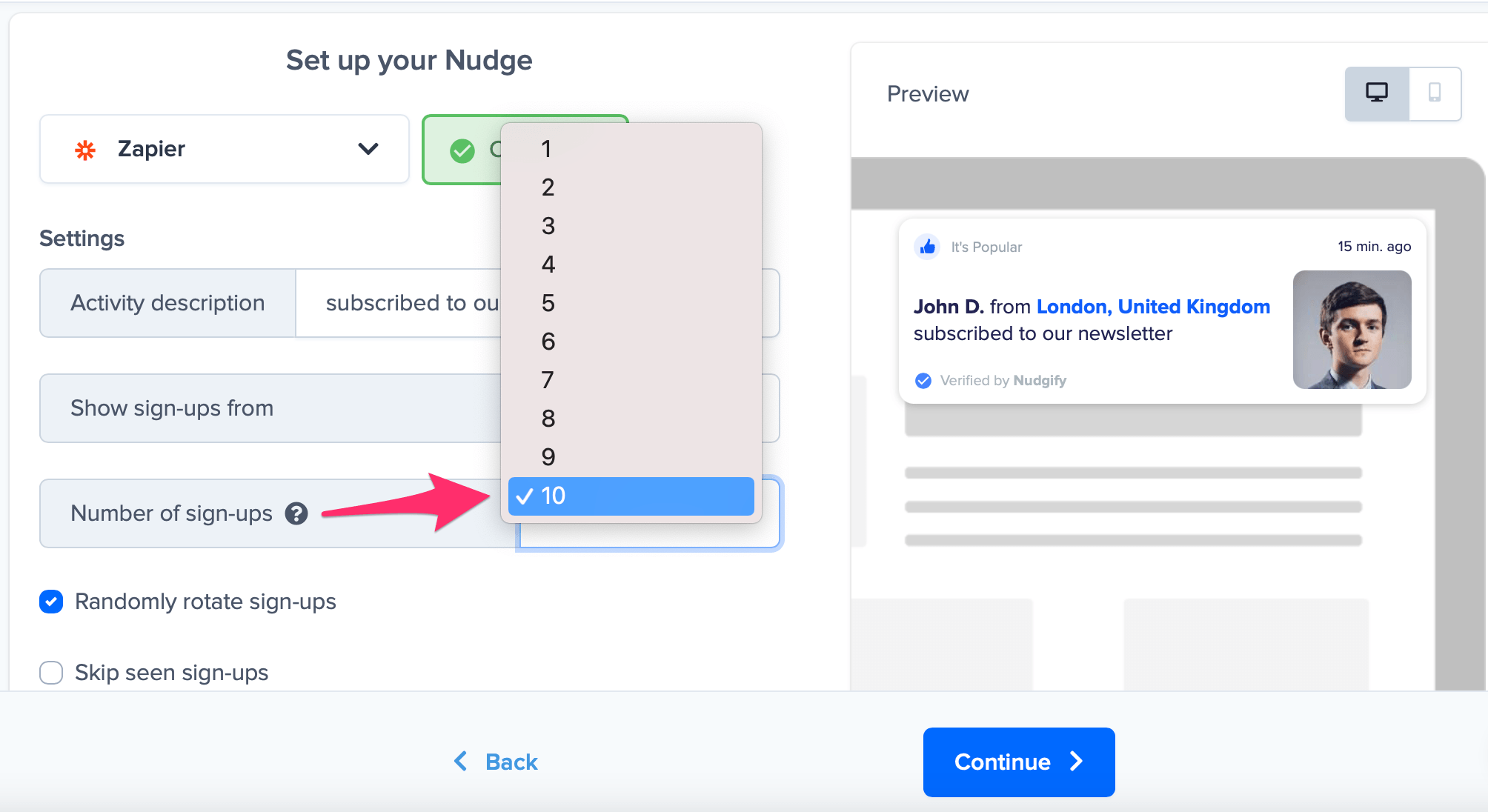
Select the number of sign-ups you want to show
You can show up to your 10 most recent sign-ups. If you choose to show multiple sign-ups, they will show up one after the other.
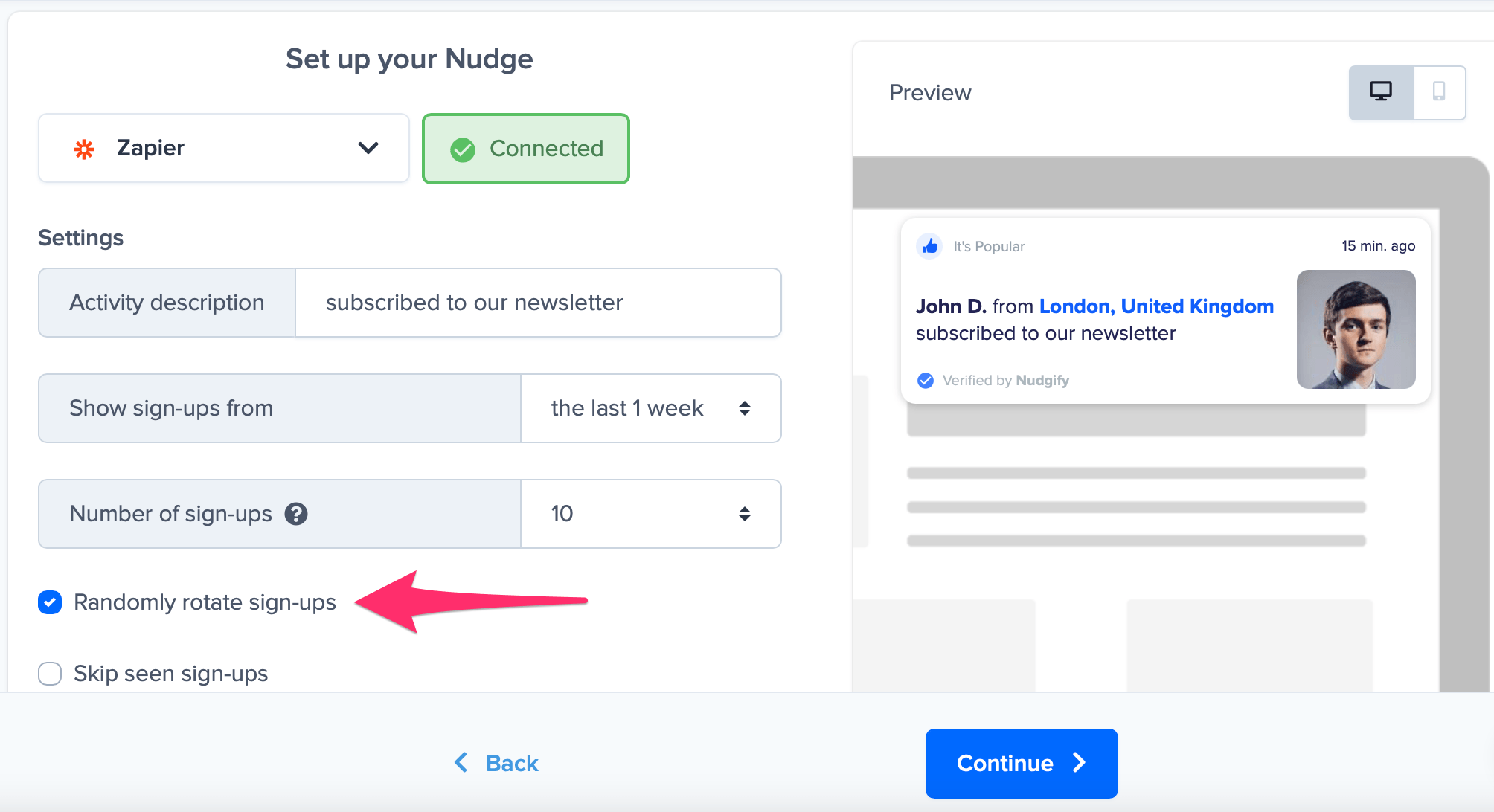
Randomly rotate your sign-ups
If you choose to show multiple sign-ups, you might want to randomly rotate them. This way, your visitors won’t always see the same sign-up first when they browse your pages. Just tick the check box to randomly rotate them.
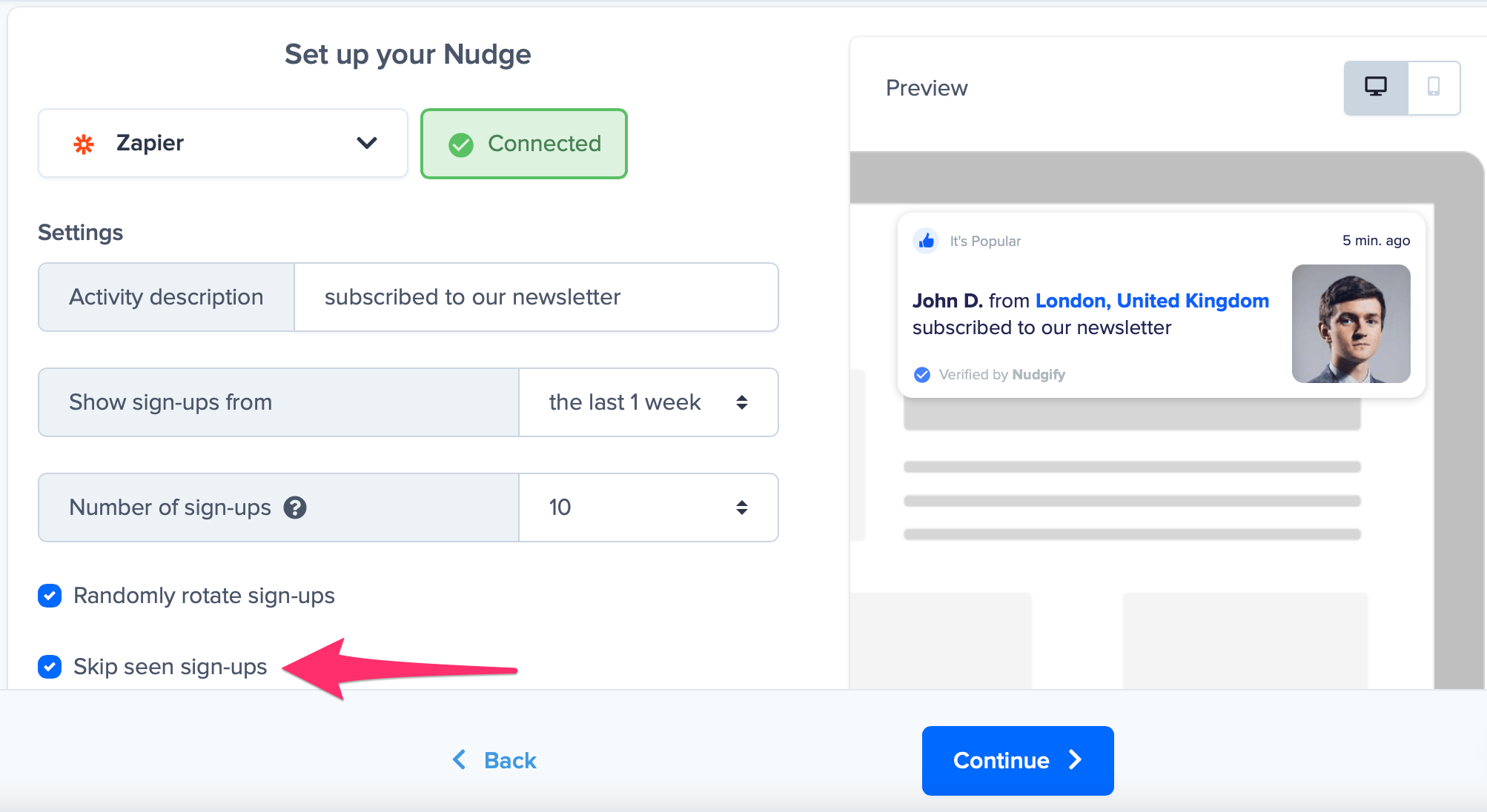
Skip seen sign-ups
If you turn the Skip seen sign-ups option on, we skip already seen sign-ups for the rest of the session. This way, you make sure you don’t show the same sign-up to the same visitor twice. Find out more about the option to skip seen Social Proof.
Show full details or make it anonymous
You can also choose in how much detail you wish to show the name and location of the person who performed the recent activity. By default, the Nudge displays:
- a map of the location of the person (or, if the location is not available, a pawn icon)
- first name + initial (e.g. John D.)
- the city and country (e.g. Berlin, Germany)
From the Plus Plan onwards, you can change the default settings (go to Nudge Settings > Message) to make your Social Proof Nudges more anonymous.
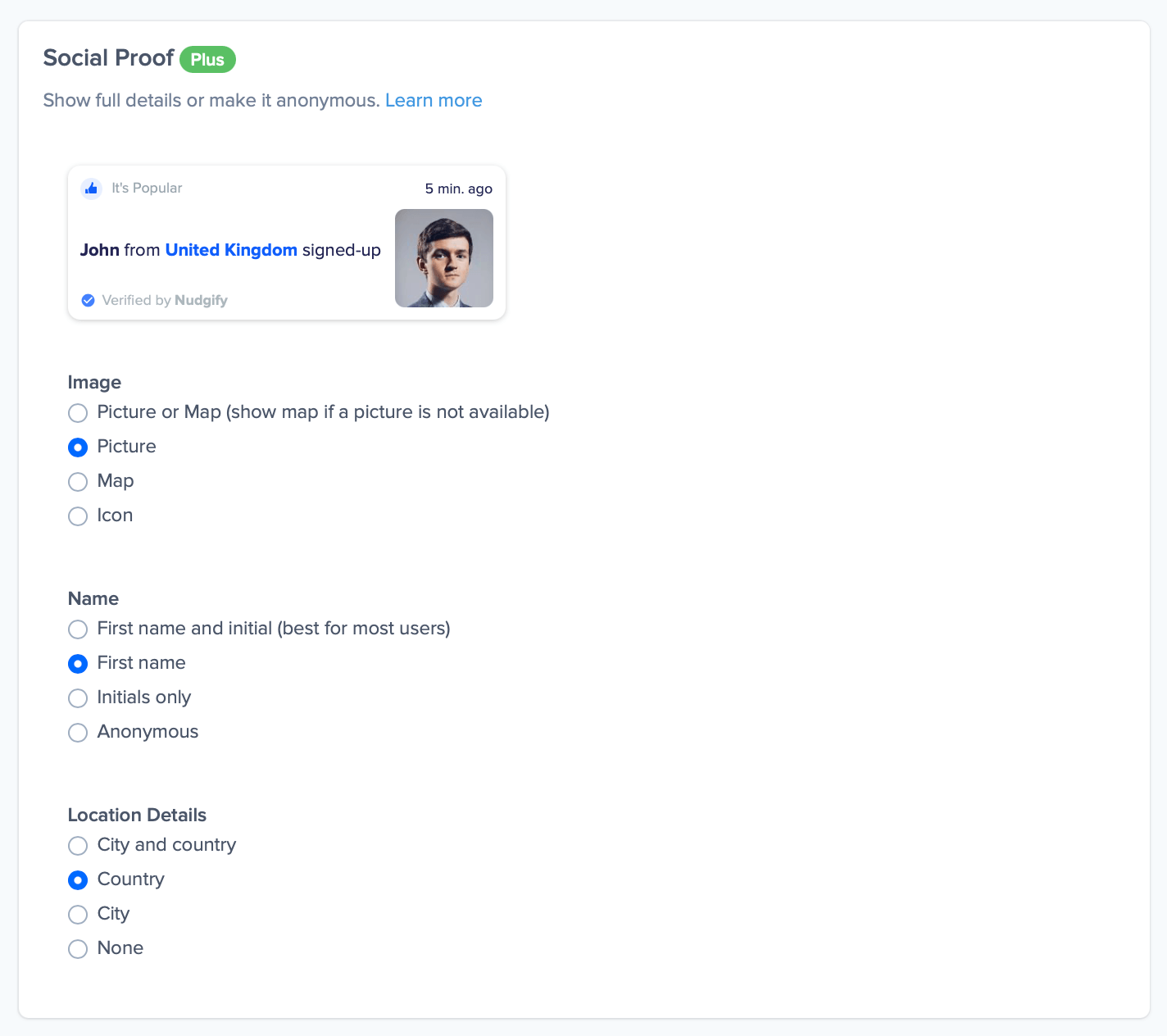
If any of the information is not available, the Nudge will fall back on another option.
- For the image, a pawn icon will show if the map is unavailable.
- If the name is unavailable, the Nudge will fall back to the anonymous option and display ‘someone’.
- In case the location is unavailable, no location will be displayed.
All sign-ups
Recent Sign-up Nudges that show all sign-ups include a count of people who signed up recently to create a powerful Social Proof effect.
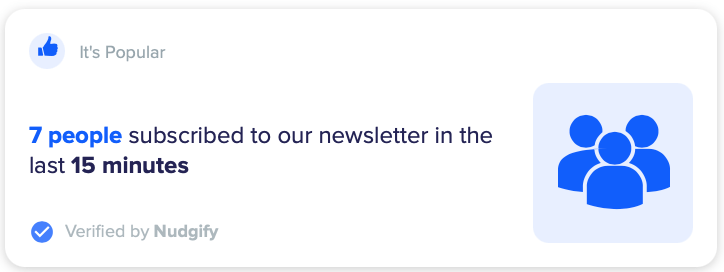
Choose a time frame
You can choose to show sign-ups from all time or hide sign-ups older than e.g. 1 week.The Nudge shows the maximum number of sign-ups within the time frame you set.
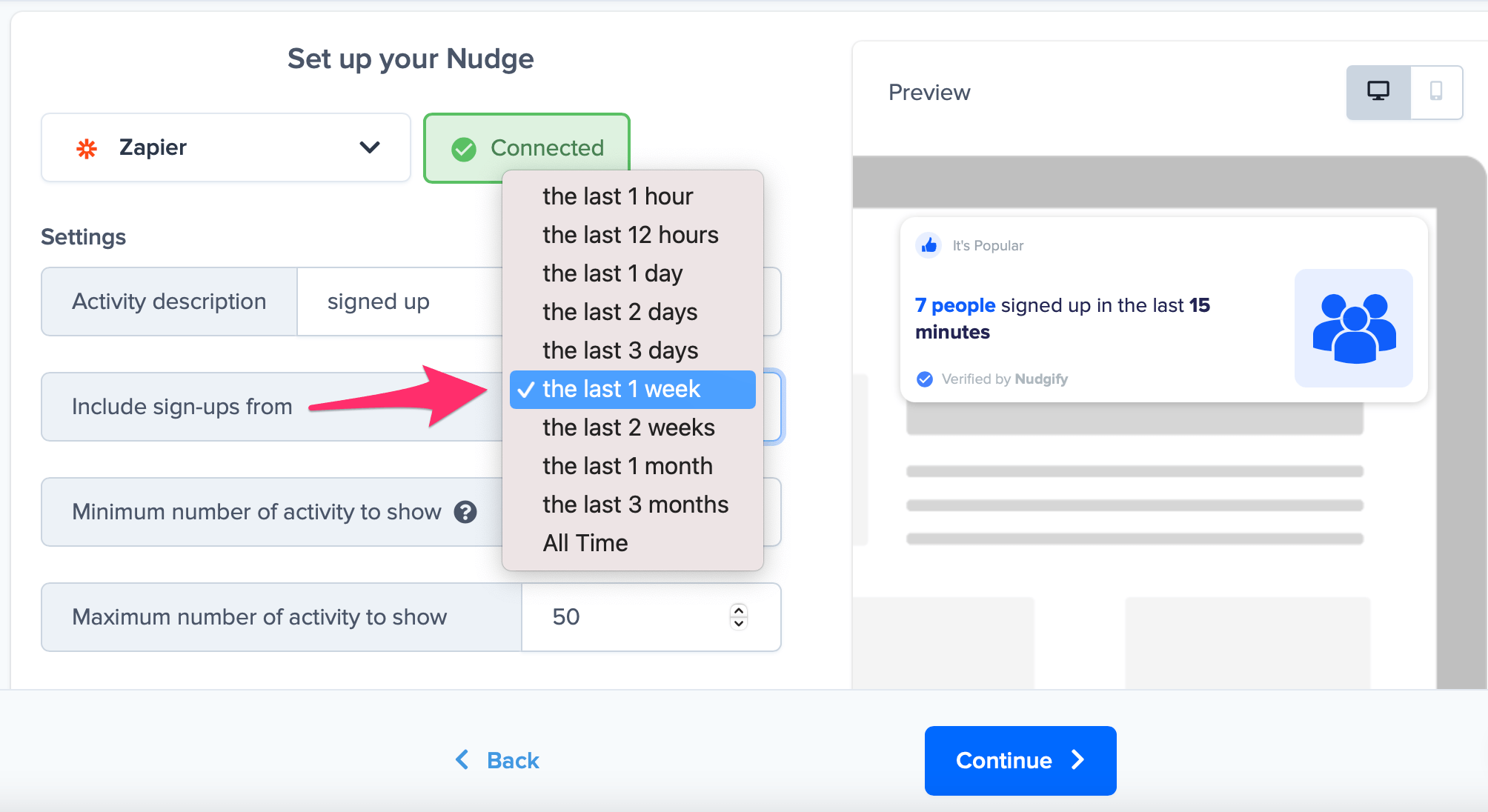
For example, you select that you want to hide sign-ups older than 12 hours. 5 people signed up in the last 6 hours, but 17 people in the last 10 hours. Between 10 and 12 hours ago, no one signed up. In this case, we will show the maximum amount of sign-ups, 17, in the smallest time frame, 10 hours. The Nudge will say ’17 people signed up in the last 10 hours’.
Set a minimum and maximum
You can choose the minimum and maximum number of sign-ups required for the Nudge to show.
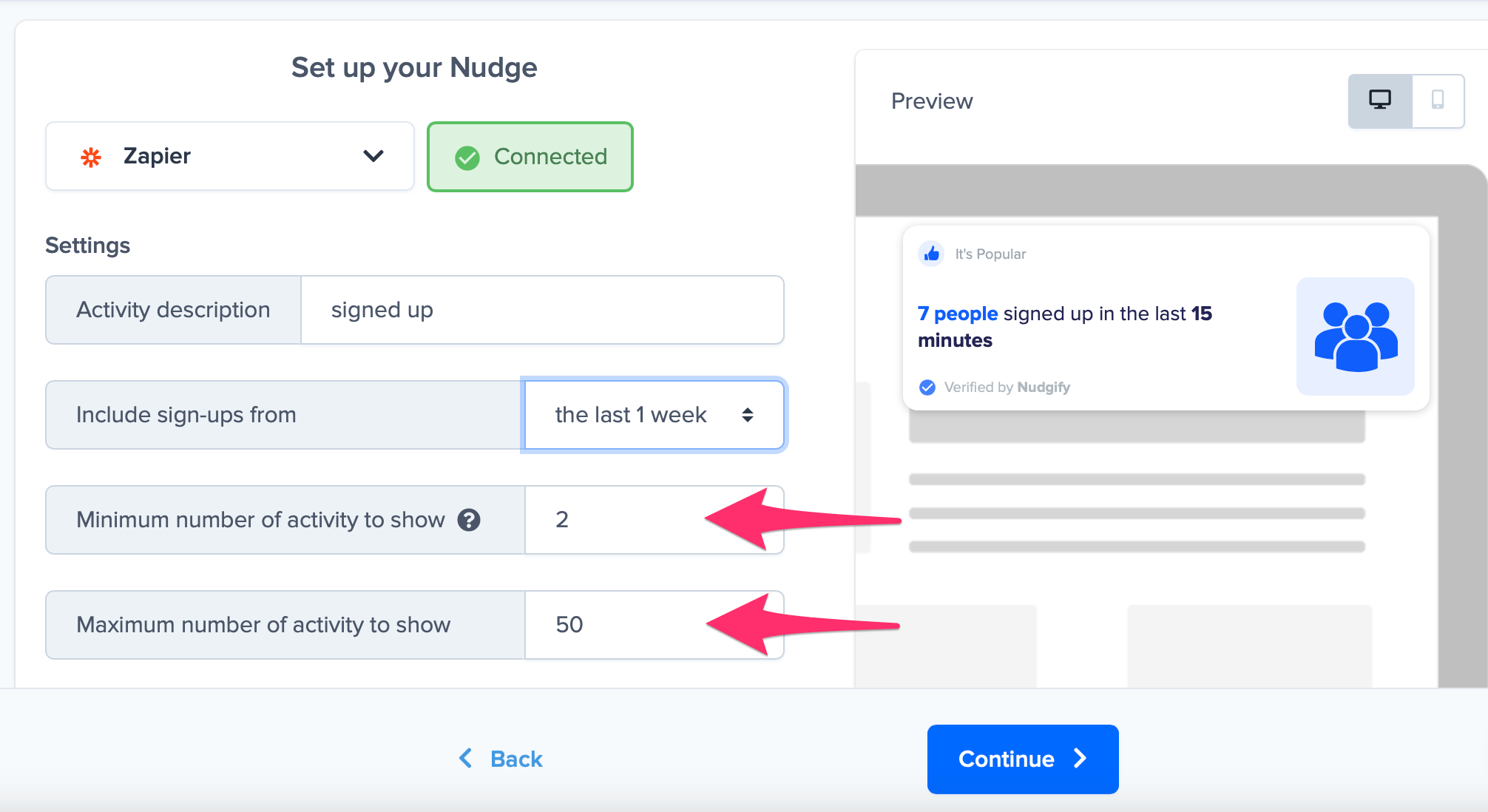
Do you not want to show the Nudge if there are less than 5 recent sign-ups to display? Set the minimum to 5. This way, when less than 5 people signed up in the time frame you chose (e.g. 24 hours), the Nudge will not show.
What if the Nudge does not show?
-
You don’t have any new sign-ups since you added the Nudge
Note that Nudgify does not collect historical data to display the Recent Sign-up Nudge. Data collection starts from the moment you install Nudgify. This means that the Nudge might not show up and create Social Proof at first if you haven’t had any new sign-ups on your website since you installed the app.
- You don’t have enough sign-upsIf the Recent Sign-up Nudge for all visitors does not show up, check the minimum and time frame you set. When the amount of activities within the set time frame is less than the minimum you chose, the Nudge won’t show.
- Check you Conversion Data FeedIf your Nudges do not show, it could be that your integration is not working correctly. You can check this by looking at your Conversion Data Feed. Your Data Feed shows all the new sign-ups that are sent to Nudgify via your integration(s). If no sign-ups come through in the data feed, your integration is not working. In this case we advise you to double check your setup.
