.png)
Popularity Nudge: Visitors
A Popularity Nudge shows recent visitors to your pages. By showing your visitors that your site is being looked at by others, you trigger a powerful Social Proof effect.
You can show the most recent visitor only, or all recent visitors.
Add a Popularity Nudge
To display recent page views, Nudgify collects live data from your website via the Nudgify Pixel. The Popularity Nudge displays visitors on the page you show the Nudge on.
To turn your visits into Social Proof, you need add a Popularity Nudge from the Nudge Library.
- Go to the Pop-Ups page and click “Add Nudge”.
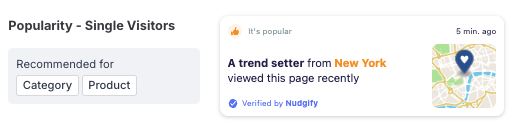
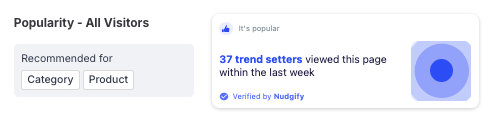
- Choose the Popularity Nudge: we offer a Popularity Nudge that shows single visitors and the Popularity Nudge that shows a count of visitors.
- Configure your Nudge (the configuration settings are explained in detail below), and click "Continue".
That's all! Your Nudge is live and turning your visitors into powerful Social Proof!
Single visitors
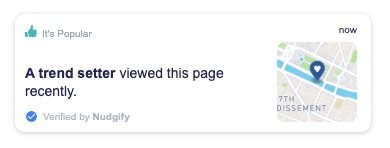
The Popularity Nudge for single visitors shows up to your 10 most recent visitors in a Nudge, one after another. You can decide how to refer to a visitor, how recent visits need to be, how many visitors you'd like to show, and whether or not to show the location of your visitors.

Refer to visitor as: You can choose how to refer to your visitors, such as "A person," "A trendsetter," or "A happy traveler." These identifiers will be displayed on visitor nudges. An identifier is the name used to reference your visitors in these nudges.
For example, your nudge might say: "A trendsetter just visited this page recently." You can add up to five different identifiers for your visitors in the Single Visitor Nudges, adding more variety and dynamism for your website visitors.
To add multiple identifiers, press Enter, use a comma, or click the plus button after each one is entered into the text box.
Describe the activity as: You decide how you wish to describe your activity, for example "viewed this page" or "read this blog". This allows you to further tailor your Nudge to your website.
Only show recent visits: The "Show visits from..." option lets you decide how recent the visits must be to show in a Nudge. You can choose to show visits made in the last hour, 12 hours, day, week etc. In the top right corner of the Nudge, it displays how long ago the page was visited.
Hide the time for visits older than: The Nudge displays how long ago a visitor viewed your page. The more recent the visit, the stronger the Social Proof effect. It's not always beneficial to display the time of older visits. You can choose to hide the time when visits are older than e.g. 1 hour, 1 day, 1 week etc. This way, you can make sure that the time only displays on your Nudges for recent visitors.
Number of visits: With the Popularity Nudge for single visitors, we show up to your 10 most recent visitors. You choose whether you want to show all 10, or less.
Randomly rotate visits: If you choose to show multiple visits, you might want to randomly rotate them. This way, your visitors won't always see the same visit first when they browse your pages. Just tick the check-box to randomize them.
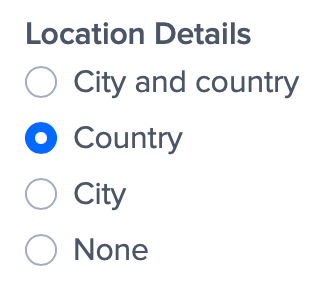
Show the location: The Nudge also shows the location of the visitor. In your Nudge Settings, in the message tab, you can choose to show the city and country, the country only, or hide the location of your visitors altogether.
All visitors
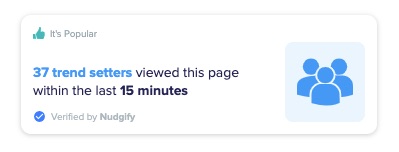
The Popularity Nudge for all visitors shows the number of visitors that have visited your page within the time frame you set. You can decide how to refer to your visitors, how recent visits need to be, and the minimum and maximum number of visitors you'd like to show.

Refer to visitors as: You can choose how to refer to your visitors, such as "People" "Trendsetters," or "Happy travelers." These identifiers will be displayed on visitor nudges. An identifier is the name used to reference your visitors in these nudges.
For example, your nudge might say: "5 trendsetters just visited this page recently." You can add up to five different identifiers for your visitors in the All Visitor Nudges, adding more variety and dynamism to your website's notifications.
To add multiple identifiers, press Enter, use a comma, or click the plus button after each one is entered into the text box.
Describe the activity as: You decide how you wish to describe your activity, for example "viewed this page" or "read this blog". This allows you to further tailor your Nudge to your website.
Include visits from: the Nudge shows the time frame within which the page was visited. You can choose to hide visits older than e.g. 12 hours. The Nudge will show the most visitors within the time frame you selected.
Additionally, to make your visitors' data appear more consistent and natural, the duration displayed on the nudges is rounded up using the following scale:
- Up to 1 hour: The duration is scaled as "In the last 15 minutes," "In the last 30 minutes," "In the last 45 minutes," or "In the last 1 hour."
- Up to 12 hours: The duration is scaled as "In the last 6 hours" or "In the last 12 hours."
- Up to 1 week: The duration is scaled in days as "In the last 1 day," "In the last 2 days," and so on, up to "In the last 6 days" or "In the last 1 week."
- Above 1 week: The duration is scaled in weeks as "In the last 1 week," "In the last 2 weeks," "In the last 3 weeks," or "In the last 1 month."
For example, if you choose to hide visits older than 12 hours, and 25 people visited your page in the last 6 hours while 47 visited in the last 10 hours, but no one visited between 10 and 12 hours ago, the Nudge will show the highest number of visitors, 25, in the nearest time scale, 6 hours. Then, the Nudge will say "47 people viewed this page in the last 6 hours."
However, if there are records for up to 12 hours—say 50 people visited in the last 12 hours—then the Nudge will show the maximum number of visitors, 50, in the nearest time scale, 12 hours. It will say "50 people viewed this page in the last 12 hours."
Why Time-Scaling?
Studies show that people respond more naturally to time when it's presented evenly. For example, '30 people visited this page in the last 12 hours' feels more realistic than '30 people visited this page in the last 7 hours.' The 12-hour duration feels more relatable and more credible.
We implemented this time-scaling in your visitor's Nudge to help you connect better with your audience, making your nudges more relatable and effective.
Minimum and maximum: You can choose the minimum and maximum of visitors that are required for the Nudge to show. Do you not want to show the Nudge if you have less than 5 visitors? Set the minimum to 5. This means that when less than 5 people visited the page in the time frame you chose (e.g. 24 hours), the Nudge will not show.
What if my Popularity Nudge doesn't show?
The Popularity Nudge for single visitors shows as long as someone has visited the page within the time frame you set. The Popularity Nudge for all visitors shows when a minimum of 2 visitors have viewed the page within the time frame you set.
Adjust your time frame
If the Popularity Nudge does not show, it might be that your pages don't have enough visitors within the time frame you set. Adjust your time frame and see if the Nudge shows.
Adjust your minimum
For the Popularity Nudge for all visitors, the minimum number of visitors is set to 2 by default. You can set this minimum to be higher than 2 when configuring the Nudge. When less people than this minimum visit your page in the time frame you chose, the Nudge won't show. Adjust your minimum and see if the Nudge shows.
Make sure your Pixel is installed
We use your Nudgify Pixel to detect visitors on you pages. To show the Popularity Nudge, you need to make sure the Pixel is installed on the pages of your site.
Wait until you have more visitors
Nudgify does not collect historical data to display the Popularity Nudge. Data collection starts from the moment you install Nudgify. This means that the Nudge might not show up at first, if you haven't had enough new visitors since you added the Pixel to your site. Simply wait until you have more visitors to turn into Social Proof.
